
An issue is a problem reported on a vehicle, such as a warning light, a cracked windshield or a noise the driver noticed. Logging it in Locate means it has an owner and a due date, and it stays on the vehicle's record until it is fixed.
Report an issue
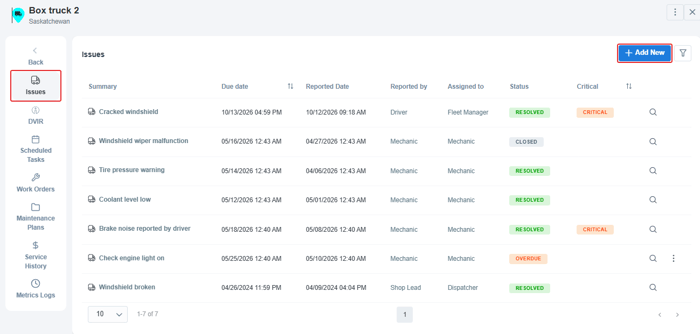
- Go to Fleet > Equipment List and click the vehicle's name.
- Click Maintenance > Issues, then Add New.
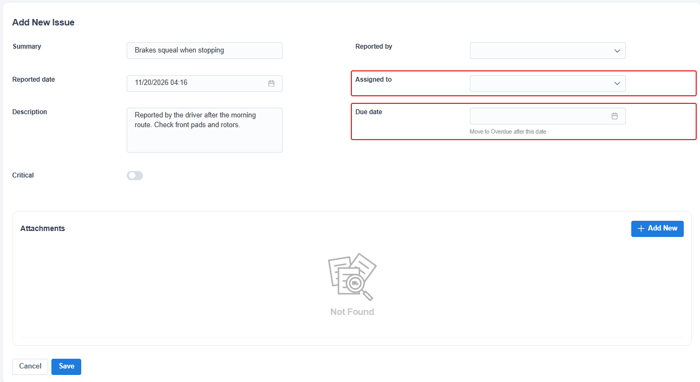
- Enter a short Summary and a Description. Turn on Critical if the vehicle shouldn't be used until it's fixed.
- Choose who it was Reported by and who it is Assigned to.
- Set a Due date. If the issue isn't resolved by then, it moves to Overdue.
- Add photos under Attachments if you have them, then click Save.
Resolve or close an issue
Open the issue with the magnifying glass. Then choose one of these:
- Resolve > Resolve With Note: record what was done in a short note.
- Resolve > Resolve with Service Entry: log the repair in the vehicle's Service History at the same time.
- Close: close the issue without a repair.
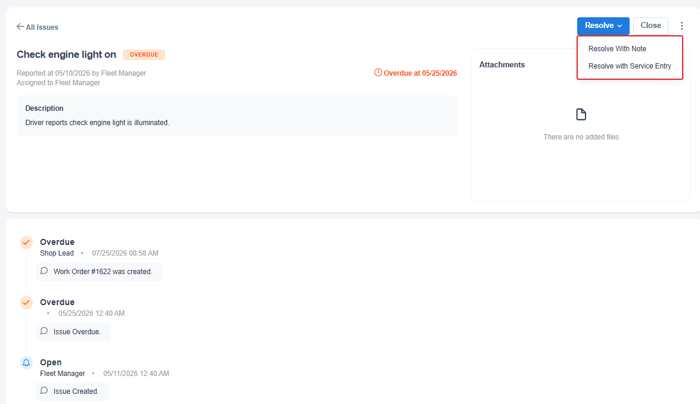
The timeline under the issue keeps its history: when it was created, when it became overdue, and any work order created for it. You can also resolve an issue by ticking it when you add a service entry, or by linking it to a work order.
See issues for your whole fleet
Go to Operations > Fleet Issues for every vehicle's issues in one list, with status, due date, who reported it and who it is assigned to. Problems found on drivers' DVIR inspections can also appear here.