
A DVIR (Driver Vehicle Inspection Report) is the checklist a driver completes before or after a trip. In Locate you build it from two parts:
- Inspection items: the individual checks, for example Brakes: Service Brake or Coolant Level.
- Inspection forms: a named checklist made of items, for example Pre-trip inspection.
Both are under Operations, in the DVIR column.
1. Add inspection items
- Go to Operations > Inspection Items and click Add New.
- Enter a Name and, in Inspection Details, tell the driver exactly what to check.
- Leave Status as Enabled and click Save.
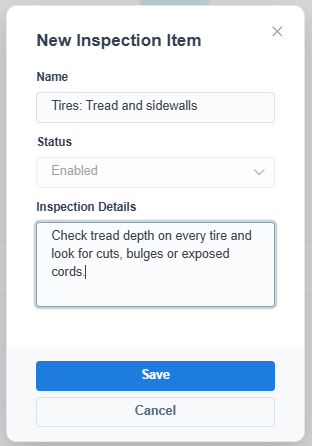
Check the list first. Your account may already have common items, and the Used in Form column shows which items are in use.
2. Build an inspection form
- Go to Operations > Inspection Forms and click Add New.
- Enter a Form Name, for example Pre-trip inspection.
- Under Inspection Items, click Add New and pick each item for the form.
- For each item, choose:
- Is Mandatory: the driver must answer it.
- Comments Allowed and Images Allowed: the driver can add a note or photo, which is useful for defects.
- Max Time (min): an optional time limit for the item, in minutes.
- Click Save.
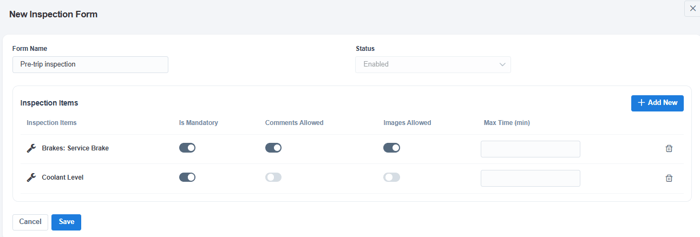
To stop using a form, open it and set its Status to Disabled.
3. Review inspections
Drivers complete the forms on their mobile device. To review them:
- DVIR report: one row per submitted inspection, with pass and fail counts.
- Detailed DVIR report: the same inspections item by item.
- Defects reported on an inspection can also appear in Operations > Fleet Issues. See How do I report and track a vehicle issue?