PosiTrace 3.0 | Reports › Trips & Activity › Geofences | Last updated 21 Aug 2026
1. What this report is
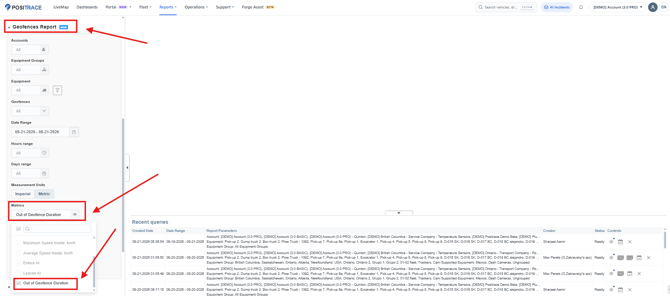
The Out of Geofence report is not a separate report in the menu. It is a metric option inside the existing Geofences report. Selecting Out of Geofence Duration in the Metrics picker turns the Geofences report from an “inside the geofence” view into an “outside the geofence” view: for every piece of equipment it shows each period spent away from your geofences — when it left, when it came back, and how long it was out.
2. Purpose — why this report exists
- It answers the inverse question. Standard geofence reporting tells you how long a vehicle was inside a site. Operations teams need the opposite: how long it was away from base.
- Labour and operational compliance. The report was built for fleets preparing for Mexico’s 2027 labour reform (reduction of the working week to 40 hours), where time outside the operating-centre geofences is used as the measure of on-road operational time per vehicle per day.
- It removes the manual Excel step. Previously customers exported inside-geofence visits and hand-calculated the gaps between them. That was slow, error-prone, and it undermined confidence in the data.
- It treats your sites as one operating area. All selected geofences are pooled, so a vehicle moving between your own yards or distribution centres is not counted as being “out”.
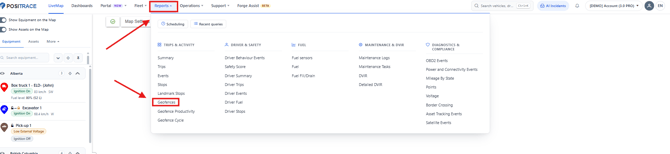
3. Where to find it
Reports › Trips & Activity › Geofences → in the left-hand panel set Metrics → Out of Geofence Duration → Generate Report.
4. Running the report — step by step
- Go to Reports › Geofences.
- Accounts / Equipment Groups / Equipment — scope the fleet you want to measure.
- Geofences — select the geofences that make up your operating area. All of them are treated as a single area: the vehicle counts as inside if it is inside any one of them.
- Date Range — use whole, completed days (see Limitations).
- Hours range / Days range — optional, to restrict to a shift or to weekdays.
- Measurement Units — Imperial or Metric.
- Metrics → tick Out of Geofence Duration. This is the switch that produces the out-of-geofence view.
- Additional Fields — optional extra columns, for example Equipment Subgroup and Plate Number.
- Results Format — on-screen, PDF, XLS/CSV.
- Generate Report, or Schedule to have it delivered on a recurring basis.
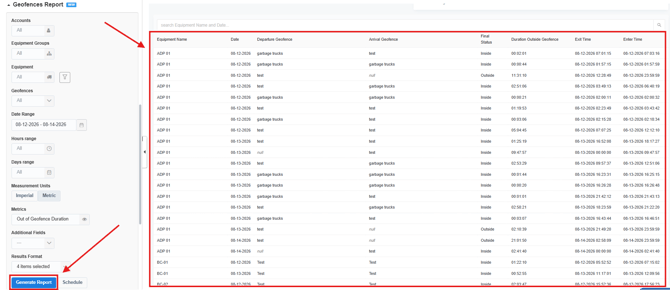
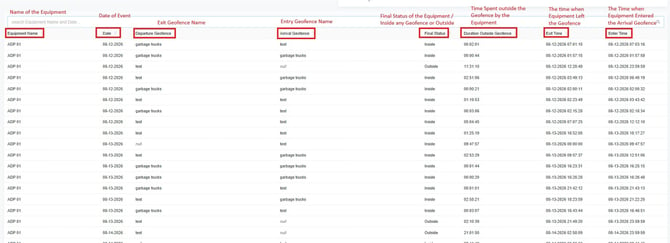
5. Column definitions
|
Column |
What it means |
|
Equipment Name |
The vehicle or asset the row belongs to. |
|
Date |
The local calendar date the row covers. Periods that cross midnight are split at midnight, so one continuous absence appears as one row per day. |
|
Departure Geofence |
The geofence the equipment exited to begin this outside period. Blank means there was no exit event on this date — the equipment was already outside at 00:00:00, because the period carried over from the previous day or from before the report window. |
|
Arrival Geofence |
The geofence the equipment entered to close this outside period. Blank means it never returned to any selected geofence before the period was cut off at 23:59:59. |
|
Final Status |
Where the equipment was at the end of the period, taken from its last known location. Inside = it returned to a geofence (Arrival Geofence is filled). Outside = it was still away when the day or report window closed (Arrival Geofence is blank). |
|
Duration Outside Geofence |
Elapsed time from Exit Time to Enter Time, as HH:MM:SS. This is the headline number of the report. |
|
Exit Time |
Timestamp the equipment left the Departure Geofence. Shows 00:00:00 when the period carried over from the previous day. |
|
Enter Time |
Timestamp the equipment entered the Arrival Geofence. Shows 23:59:59 when it had not returned by the end of the day. |
5.1 Reading blank Departure / Arrival cells
This is the most common question about the report. A blank in either column simply means there is no geofence event on that side of the period — the equipment was not in any geofence at that boundary.
|
Departure Geofence |
Arrival Geofence |
Final Status |
What it means |
|
Filled |
Filled |
Inside |
Complete round trip — left one geofence and returned to another, or back to the same one. |
|
Blank |
Filled |
Inside |
Already outside at midnight; returned to a geofence during this day. |
|
Filled |
Blank |
Outside |
Left a geofence and had not returned by 23:59:59 — still out at day end. |
|
Blank |
Blank |
Outside |
Away from every selected geofence for the whole of that day. |
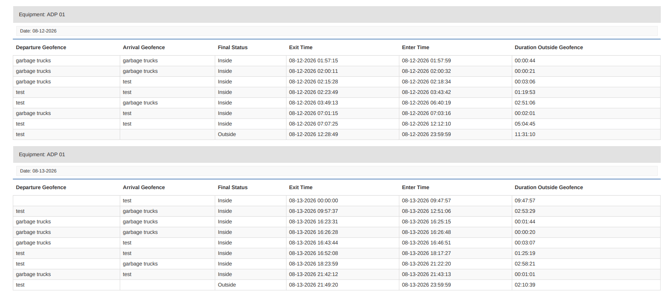
5.2 Worked example (ADP 01, sample data)
|
Date |
Departure |
Arrival |
Final Status |
Exit → Enter |
Duration |
|
08-12-2026 |
test |
(blank) |
Outside |
12:28:49 → 23:59:59 |
11:31:10 |
|
08-13-2026 |
(blank) |
test |
Inside |
00:00:00 → 09:47:57 |
09:47:57 |
These two rows are the same physical absence, split at midnight: the unit left the “test” geofence at 12:28 on the 12th and did not get back until 09:47 the next morning. To measure the whole absence, add the daily rows together (11:31:10 + 09:47:57 = 21:19:07).
6. How the duration is calculated
- All selected geofences count as one operating area. The equipment is Inside whenever it is inside any selected geofence, so moving between your own sites does not generate outside time.
- Both Inside and Out of Geofence rows are produced — the leading period before the first visit of the day, every between-visit gap, and the trailing period after the last visit.
- Total outside time for a window = window duration − total time spent inside the selected geofences.
- Final Status is derived from the equipment’s last known location at the close of the period.
- The midnight split is unchanged from the standard Geofences report, so overnight absences appear as multiple rows.
- Rows are only produced for dates on which the equipment had at least one inside visit. If a vehicle had no contact with any selected geofence on a given day, it is left out of that day rather than shown as a full-day 23:59:59 row. This was a deliberate design decision: full-day rows for vehicles that never come near a site are noise rather than information. Note that a visit crossing midnight counts towards both dates.
7. Best practices
- Select only the geofences that form your operating area. Adding unrelated customer-site geofences will make absences look shorter than they are.
- Add Equipment Subgroup and Plate Number via Additional Fields when the report is going to an operations, HR, or compliance audience.
- Schedule it. The metric is available when creating a scheduled Geofences report, and a saved schedule reproduces the selection on every run.
- Aggregate by Equipment × Date for daily out-of-base totals, and sum consecutive daily rows to reconstruct absences that straddle midnight.
8. Known limitations
- Days with no geofence contact are omitted by design (see section 6). If you need a complete equipment × day matrix that also lists days with no site contact at all, this view will not produce it.
- Overnight absences span rows. One absence produces one row per calendar day, so row counts are not absence counts.
9. Output (PDF/CSV/Email)
On-screen, PDF and XLS/CSV; supported in scheduled reports.