
The DVIR report brings every Driver Vehicle Inspection Report submitted across your fleet into one table, with a summary of how many inspections passed, how many failed, and your overall pass rate. Use it to confirm that drivers are actually completing their inspections, to spot vehicles with recurring defects, and to keep an audit-ready record of your inspection history. This article covers how to run the report and what each part of the results means.
Before you start: this report shows inspections that drivers have submitted through their inspection forms — pre-trip, post-trip, or any custom form set up for your fleet. A vehicle only appears here if an inspection was completed against it during the period you select, so an empty report can itself be the finding: it means no one inspected that vehicle.
Where to find the report
From the top navigation bar, open Reports and choose DVIR under the Maintenance & DVIR column.
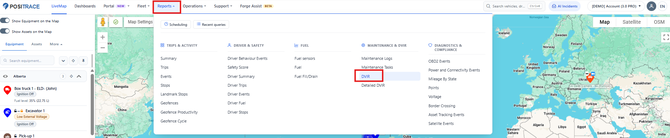
Figure 1. Reports › Maintenance & DVIR › DVIR. The neighbouring Detailed DVIR report covers the same inspections item by item — see the FAQ below for when to use which.
Setting up the report
The report opens as a panel on the left of the screen. Choose what to include, then click Generate Report.
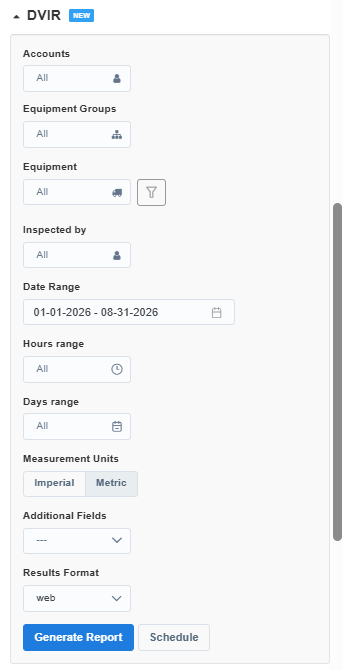
Figure 2. The DVIR report options. Any field left on All is simply not used to narrow the report.
| Field | What it does |
|---|---|
| Accounts | Limits the report to one or more accounts. Leave it on All to cover every account you have access to. |
| Equipment Groups | Limits the report to specific groups — a division, a region, or a vehicle type. |
| Equipment | Picks individual vehicles or assets. Use the funnel icon beside the field to narrow the list before you choose. |
| Inspected by | Limits the report to inspections completed by specific people — the quickest way to review one driver’s inspection record. |
| Date Range | The period the report covers. For a compliance review, match it to your audit period — a month or a quarter. |
| Hours range | Narrows the report to a window of the day — useful for checking one shift’s inspections. |
| Days range | Narrows the report to specific days, for example weekdays only. |
| Measurement Units | Switches the report between Imperial and Metric. |
| Additional Fields | Adds optional columns to the results table. Open the dropdown to see what is available for your account. |
| Results Format | Leave it on web to read the report on screen. The other options produce a file you can download and share. |
Tip: set your filters before you click Schedule. A scheduled report keeps the selections that were on screen when you created it, so the version that lands in your inbox is exactly the one you set up.
Reading the results
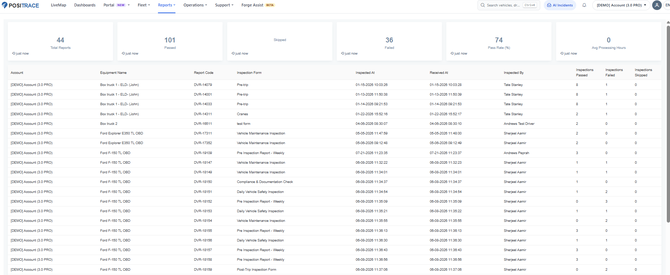
Figure 3. A generated DVIR report: summary tiles across the top, one row per submitted inspection report underneath.
The summary tiles
The tiles across the top summarize everything the report covers. One distinction matters for reading them correctly: a report is one submitted inspection form, and each report contains multiple inspection items — brakes, lights, tires, and so on. Total Reports counts the former; the pass, fail and skip figures count the latter. That is why Passed can be a bigger number than Total Reports.
| Tile | What it shows |
|---|---|
| Total Reports | The number of inspection reports submitted in the period. |
| Passed | The total number of inspection items that passed, across all reports. |
| Skipped | The total number of inspection items that were skipped rather than answered. |
| Failed | The total number of inspection items marked as defective. Every one of these is a defect a driver flagged — the number your maintenance team should care about most. |
| Pass Rate (%) | The percentage of inspection items that passed. A falling pass rate means defects are being found more often — read it alongside the Failed tile. |
| Avg Processing Hours | How long, on average, it took for completed inspections to reach PosiTrace after they were performed. Normally 0 — anything higher points at devices submitting late, typically from areas without coverage. |
The results table
One row per submitted inspection report:
| Column | What it shows |
|---|---|
| Account | The account the vehicle belongs to. |
| Equipment Name | The vehicle or asset that was inspected. |
| Report Code | The unique reference for this inspection report (for example DVR-14079). Quote it when raising the inspection with your team or with PosiTrace Support. |
| Inspection Form | Which form the driver completed — Pre-trip, Post-Trip Inspection Form, Vehicle Maintenance Inspection, or any custom form built for your fleet. |
| Inspected At | When the inspection was completed on the driver’s device. |
| Received At | When the inspection reached PosiTrace. Usually seconds after Inspected At; a long gap means the device was out of coverage and submitted the report later. |
| Inspected By | The person who completed the inspection. |
| Inspections Passed / Failed / Skipped | How many items in this report passed, failed, and were skipped. Any row with a Failed count above zero deserves a follow-up — the driver found something wrong with that vehicle. |
Making the report useful
- Treat missing reports as the headline. A vehicle that drove all week with no DVIR rows is a driver skipping inspections — a compliance problem the report shows you by omission. Filter to one vehicle at a time, or export to a file and compare against your active fleet list.
- Follow up on every failed item. Filter the period, pick out the rows with failures, and make sure each one landed with maintenance. A driver who reports defects that nobody fixes will stop reporting them.
- Review by driver, not just by vehicle. Use Inspected by to check that every driver is submitting inspections — and watch for drivers whose reports always pass everything in record time.
- Schedule it. A weekly DVIR report emailed to your maintenance or safety manager beats a report someone has to remember to run. Set the filters, then click Schedule.
- Keep it for audits. Run the report for your audit period with Results Format set to a file option, and you have a dated record of every inspection your fleet completed.
Frequently asked questions
What is the difference between the DVIR and Detailed DVIR reports?
The DVIR report gives you one row per submitted inspection report, with pass, fail and skip counts — the right level for checking compliance and spotting problem vehicles. The Detailed DVIR report, directly below it in the Reports menu, breaks each report down to the individual inspection items, so you can see exactly which items failed and what the driver recorded. Start here; switch to Detailed DVIR when a row needs investigating.
Why is the Passed number bigger than Total Reports?
Total Reports counts submitted inspection forms; Passed, Failed and Skipped count the individual items inside them. One pre-trip form with ten checklist items contributes 1 to Total Reports and up to 10 across the other tiles.
A vehicle is missing from the report. Why?
Either it falls outside your filters — check Accounts, Equipment Groups and Equipment — or no inspection was submitted for it in the selected date range, hours and days. If the vehicle was in service, the missing report is the finding: follow up with the driver.
Where do these inspections come from?
Drivers complete inspection forms from their device as part of their workflow — typically a pre-trip inspection before driving and a post-trip inspection after. Each form is a checklist built for your fleet, and every submission appears in this report. If your drivers do not have inspection forms yet, contact your PosiTrace Account Manager to set them up.
Can this report be emailed automatically?
Yes. Set your filters, then click Schedule instead of Generate Report. Existing schedules are managed from the Scheduling button at the top of the Reports menu.
What does a skipped inspection mean?
A skipped item is a checklist question the driver passed over rather than marking pass or fail. The occasional skip is normal — some items do not apply to every trip — but a pattern of heavy skipping defeats the purpose of the inspection and is worth a conversation with the driver.
Still need a hand?
If you cannot access a report, please contact PosiTrace Support or your Account Manager, as access may depend on your account's subscription.
To help us assist you faster, please provide the vehicle name, Report Code, and the date range you used.
Thank you!