
The Out of Geofence Duration metric turns the Geofences report around. Instead of how long each vehicle spent inside your geofences, it lists every period it spent outside them: when it left, when it came back and how long it was away. Use it to measure time on the road away from your yards or depots.
It isn't a separate report in the menu. It's an option in the Metrics list of the Geofences report.
Run the report
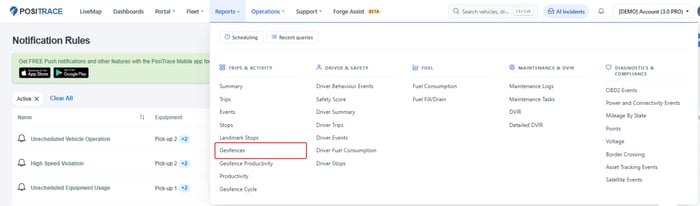
- Go to Reports and choose Geofences in the Trips & Activity column.
- In the panel on the left, set:
- Accounts, Equipment Groups and Equipment: which vehicles to include.
- Geofences: the sites that make up your operating area, such as your yards and depots. All the geofences you select count as one area: a vehicle is inside while it's in any of them.
- Date Range: whole, completed days. Leave out today (see Limitations).
- Hours range and Days range: optional, to limit the report to a shift or to weekdays.
- Metrics: select Out of Geofence Duration. It replaces the other metrics.
- Additional Fields: optional extra columns, such as Equipment Subgroup or Plate Number.
- Results Format: web to view it on screen, or PDF, Excel or CSV.
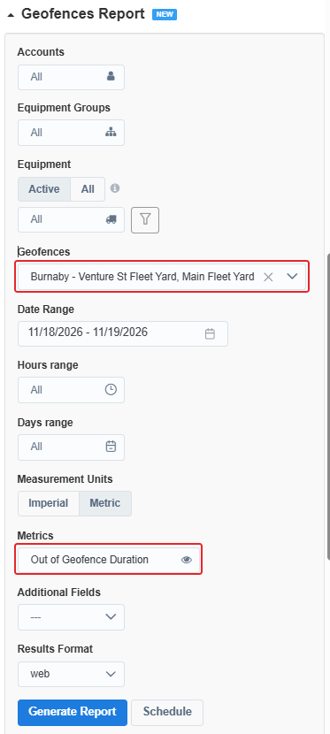
- Click Generate Report. To have it sent automatically, click Schedule instead. Each run is listed under Recent queries.
Read the results
On screen, summary charts appear first. Scroll down to the table, which has one row for each period spent outside the selected geofences.
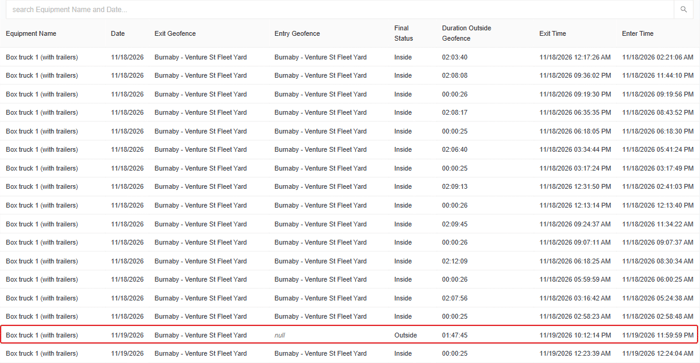
| Column | What it shows |
|---|---|
| Equipment Name | The vehicle. |
| Date | The day the row covers. A period that runs past midnight is split into one row per day. |
| Exit Geofence | The geofence the vehicle left to start the period. Empty if it was already outside at the start of the day. |
| Entry Geofence | The geofence it entered to end the period. Empty if it hadn't come back by the end of the day. |
| Final Status | Inside if the vehicle came back to a selected geofence; Outside if it was still away at the end of the day. |
| Duration Outside Geofence | Time from Exit Time to Enter Time, as HH:MM:SS. |
| Exit Time | When it left. Shows 12:00:00 AM when the period carried over from the previous day. |
| Enter Time | When it came back. Shows 11:59:59 PM when it hadn't returned by the end of the day. |
On screen, an empty Exit Geofence or Entry Geofence cell shows as null. It means there was no geofence crossing on that side of the period. In the PDF the cell is left blank.
Reading empty geofence cells
| Exit Geofence | Entry Geofence | Final Status | What it means |
|---|---|---|---|
| Filled | Filled | Inside | Left a geofence and came back the same day. |
| Empty | Filled | Inside | Already outside at midnight, and came back during the day. |
| Filled | Empty | Outside | Left during the day and was still away at 11:59:59 PM. |
Example: an overnight absence
| Date | Exit Geofence | Entry Geofence | Final Status | Exit Time | Enter Time | Duration |
|---|---|---|---|---|---|---|
| 11/12/2026 | Main Yard | null | Outside | 12:28:49 PM | 11:59:59 PM | 11:31:10 |
| 11/13/2026 | null | Main Yard | Inside | 12:00:00 AM | 09:47:57 AM | 09:47:57 |
These two rows are the same absence, split at midnight: the vehicle left Main Yard at 12:28 PM on the 12th and came back at 9:47 AM the next morning. To get the whole absence, add the rows together: 11:31:10 + 09:47:57 = 21:19:07.
How the time is calculated
- All selected geofences count as one area, so moving between your own sites doesn't count as time outside.
- The report lists the period before the first visit of the day, every gap between visits, and the period after the last visit.
- A day appears for a vehicle only if it was inside at least one selected geofence that day. Days with no visit at all are left out.
Tips
- Select only the geofences that make up your operating area. Including customer sites makes time away look shorter.
- Add Equipment Subgroup and Plate Number under Additional Fields when you share the report.
- Schedule the report to get the same selection every day or week.
Limitations
- Days with no geofence visit are left out, so the report doesn't give a complete vehicle-by-day list.
- One absence can produce several rows (one per day), so the number of rows isn't the number of absences.
- If the date range includes today, the last period of the day is still open and its figures can change. Run the report for completed days.
For time inside your geofences, run the same report without the Out of Geofence Duration metric.