
The Maintenance Logs report lists the service work recorded on your vehicles during a period you choose: what was done, when, by which vendor, what it cost and the odometer and engine hours at the time. Use it to review maintenance spending, prepare for an audit, or check that service was logged.
The report is built from the service entries in each vehicle's Service History. To add one, see Where can I enter a vehicle maintenance record?
Run the report
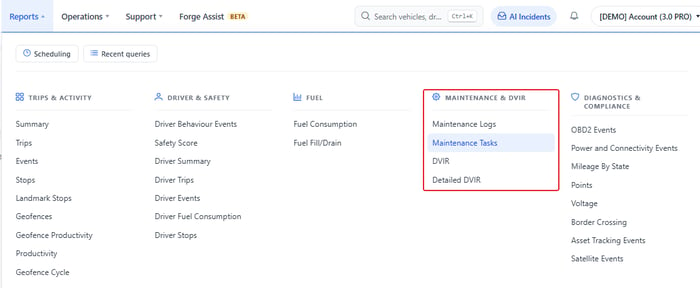
- Go to Reports and choose Maintenance Logs in the Maintenance & DVIR column.
- Set the options in the panel on the left:
- Accounts, Equipment Groups and Equipment: which vehicles to include.
- Vendor: only service done by specific vendors.
- Date Range: the period to cover. Hours range and Days range narrow it further to times of day or days of the week.
- Measurement Units and Results Format (web, PDF, Excel, CSV or email).
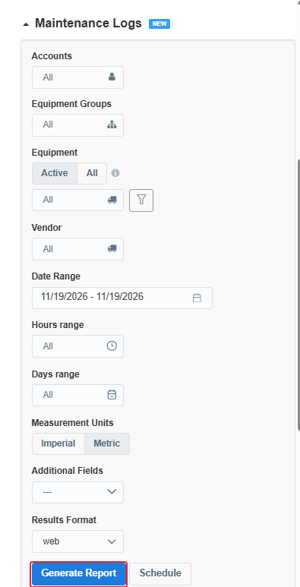
- Click Generate Report, or Schedule to receive it regularly.
Read the results
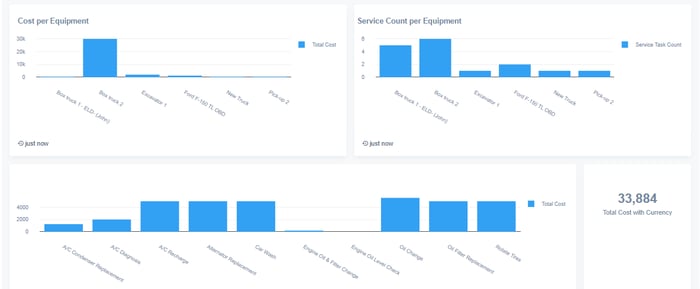
- Cost per Equipment: total service cost for each vehicle in the period.
- Service Count per Equipment: how many service tasks were done on each vehicle.
- Cost by service task: total cost for each type of job.
- Total Cost with Currency: the total for the whole report.
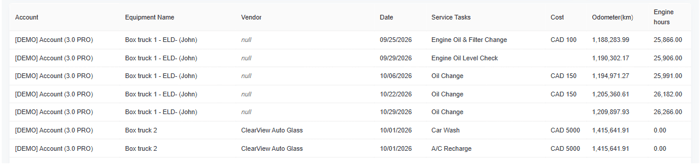
The table lists each service task that was done, with the Account, Equipment Name, Vendor, Date, Service Tasks, Cost, Odometer and Engine hours.
Tips
- Empty report: no service entries were recorded for those vehicles in that period. Widen the Date Range or check that work is being logged.
- Vendor shows null: no vendor was selected on the service entry.
- Costs are the amounts entered on each service entry, shown in your account's currency.
- To see what is coming due rather than what was done, use the Maintenance Tasks report.