
You can set the time zone in three places in Locate: in your own Personal Settings, in another user's profile (administrators only), and for the whole account.
Your own time zone
- In the top-right corner of Locate, click the Person icon, then click Personal Settings.
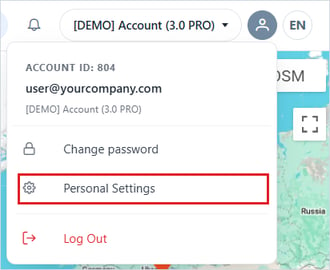
- In Time Zone, choose your time zone. If you choose Account default, your time zone always follows the account setting.

- Click Save.
Another user's time zone
If you are an administrator, you can change the time zone for other users.
- Go to Portal > Account > Users.
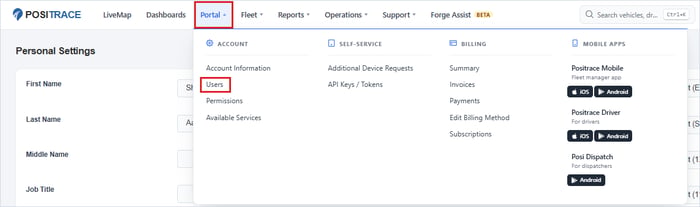
- Click the 3-dot menu next to the user and choose Edit.
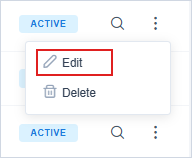
- In Time Zone, choose the time zone for this user. If you choose Account default, the user's time zone always follows the account setting.
- Click Save.
Account time zone
- Go to Portal > Account > Account Information.
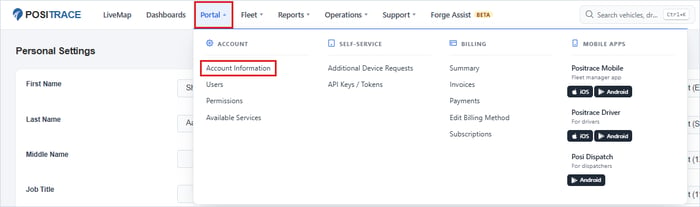
- In Time Zone, choose the time zone for the account.

- Click Save.
The account time zone applies to every user whose time zone is set to Account default.
Note: Time zones are listed by region and city, for example America/Vancouver. If the time zone in Locate is different from your computer's time zone, Locate shows a yellow notice under the field. Times in Locate always follow the time zone set in Locate.