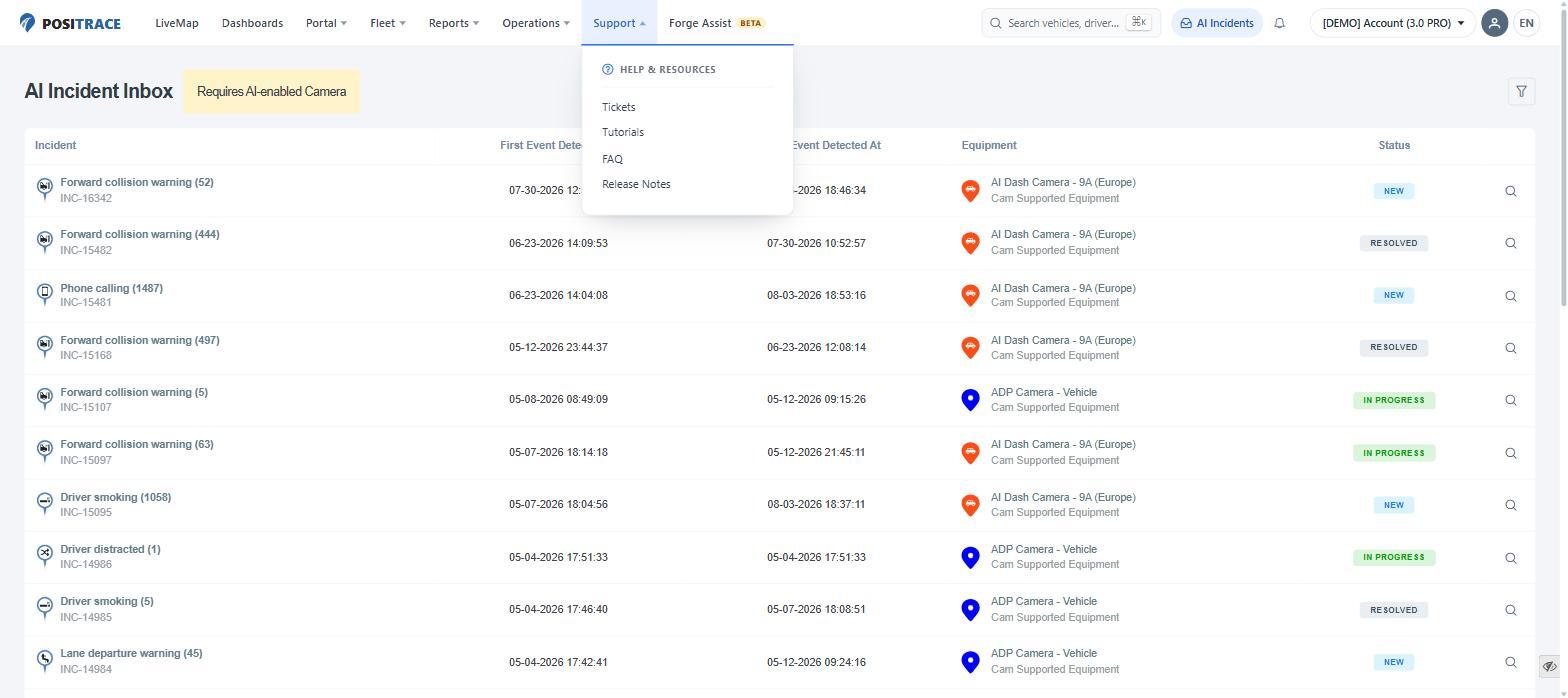
PosiTrace Locate has been redesigned to make tracking your fleet faster and simpler. This guide introduces the updated layout, menu structures, and all new search capability on the Platform.
Important Note: Menu items, tools, and specific features visible in your navigation may vary depending on your active subscription plan, add-on modules, and installed hardware devices.
Transition Period & Experience Settings
You can freely toggle between the New Experience and Classic Experience during the introductory rollout period.
Note: The UI toggle will remain available for 30 days. After 30 days, the platform will permanently update to the new interface.
Toggling Features for Your Account
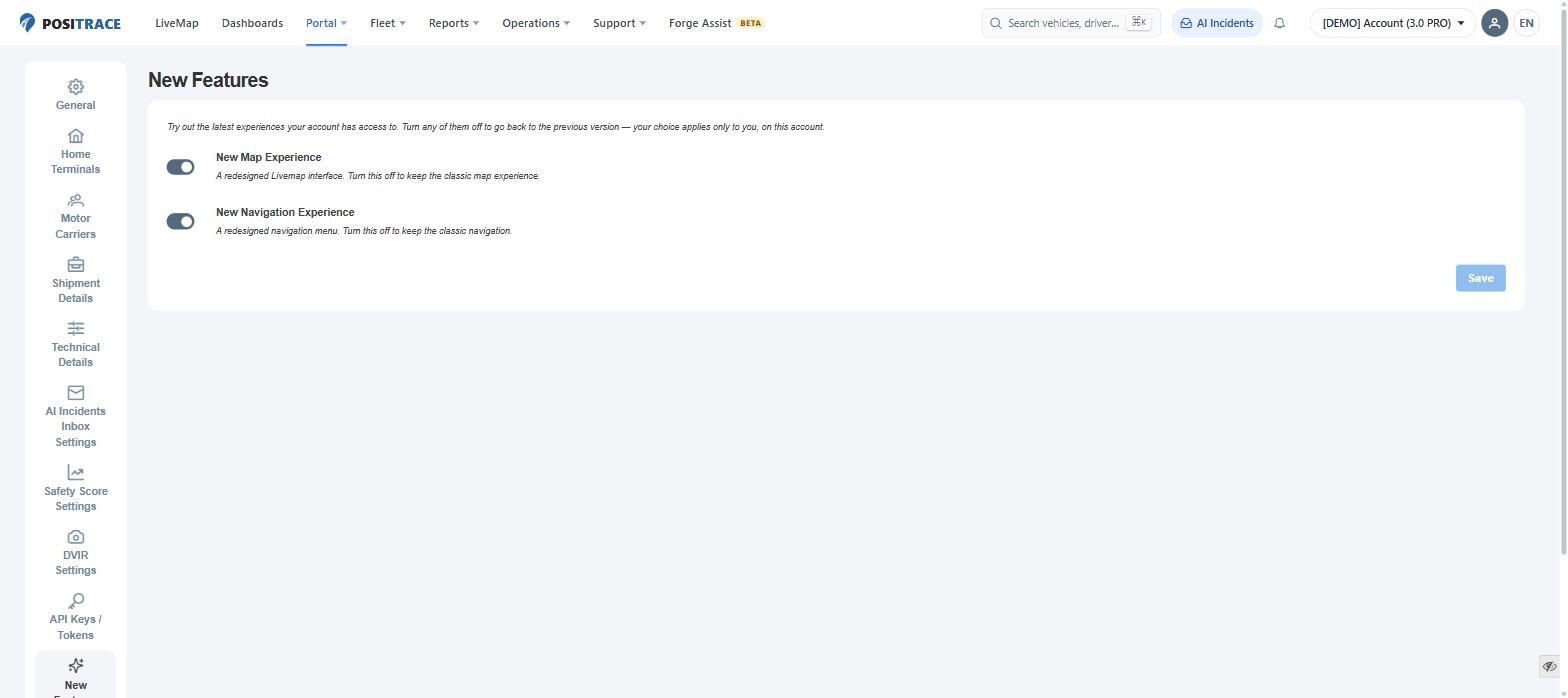
- Go to Portal in the top navigation, then select Account Information.
- Click New Features in the left sidebar.
- Toggle New Map Experience and/or New Navigation Experience ON or OFF.
- Click Save.
Multi-Account & "All Accounts" View Rules
- Default Setting: The new experience is automatically enabled by default across all accounts.
- Per-Account Customization: Switch settings for an individual account by opening that sub-account's settings (Portal > Account Information > New Features).
- "All Accounts" View Requirement: To display the All Accounts view in the new UI, every sub-account must have the new experience toggled ON. Disabling the feature on even a single sub-account will automatically set the All Accounts view to the Classic interface.
What’s New at a Glance
Redesigned Top Navigation Bar
The top menu bar consolidates every section of the platform into clean, logical groups:
- Primary Navigation: LiveMap, Dashboards, Portal, Fleet, Reports, Operations, Support, and Forge Assist.
- Platform Search (
Cmd+Kon Mac /Windows Key+Kon Windows): Press the shortcut or click the search bar to instantly find vehicles, drivers, geofences, landmarks, equipment, assets, or specific reports across the entire platform. Clicking a result navigates directly to it. - AI Incidents Inbox: Jump straight into camera-detected safety events from the top right.
- Notifications & Controls: Quick access to system alerts, account switcher, user profile, and language selection.
Redesigned LiveMap
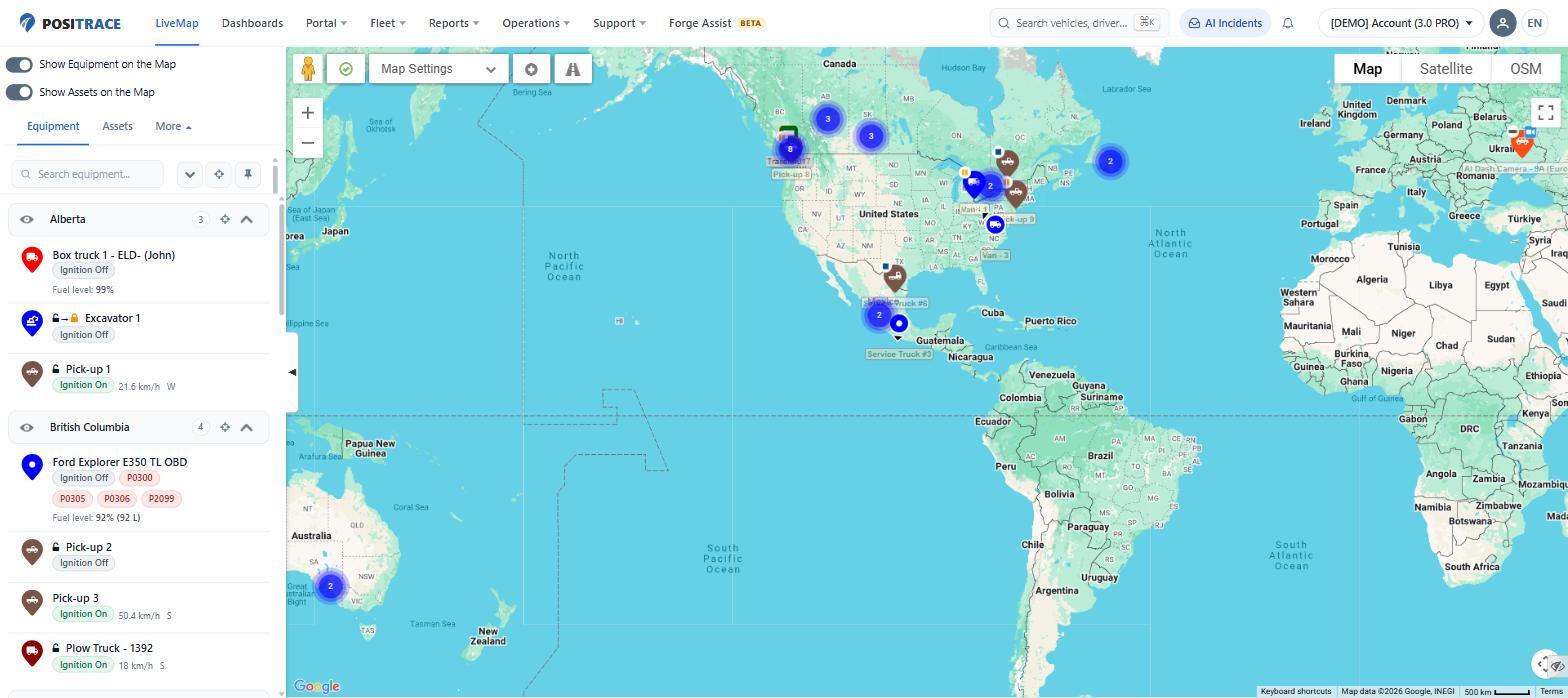
While all underlying functionality remains intact, the LiveMap user experience (UX) has been completely modernized:
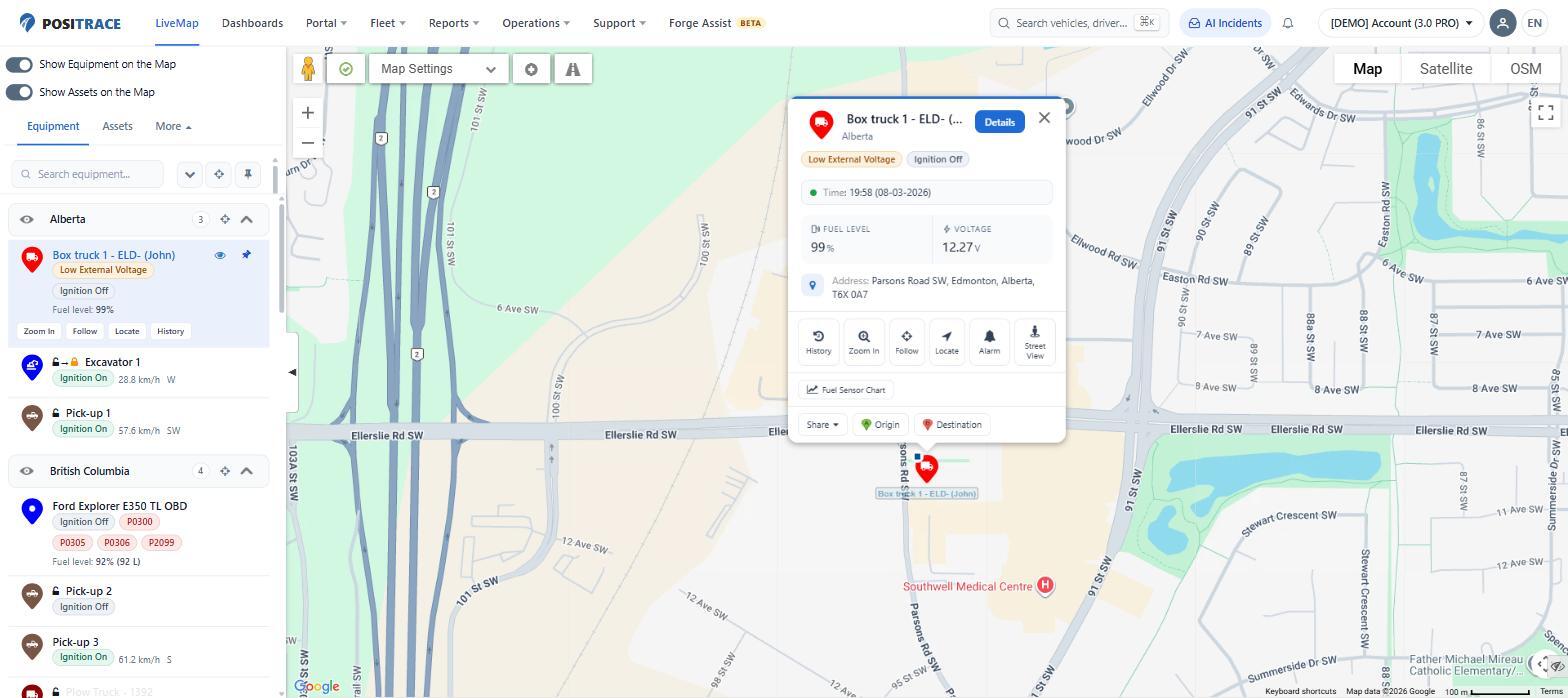
- Detail Cards: Click any vehicle or asset on the map to open its detail card. A Details button at the top of the card opens full equipment parameters.
- Real-Time Data: View ignition status, last report time, fuel level, battery voltage, and current address.
- One-Tap Actions: Instantly access History, Zoom In, Follow, Locate, Alarm, Street View, Fuel Sensor Charts, Location Sharing, or set the unit as an Origin/Destination for map directions.
Detailed Navigation & Menu Reference
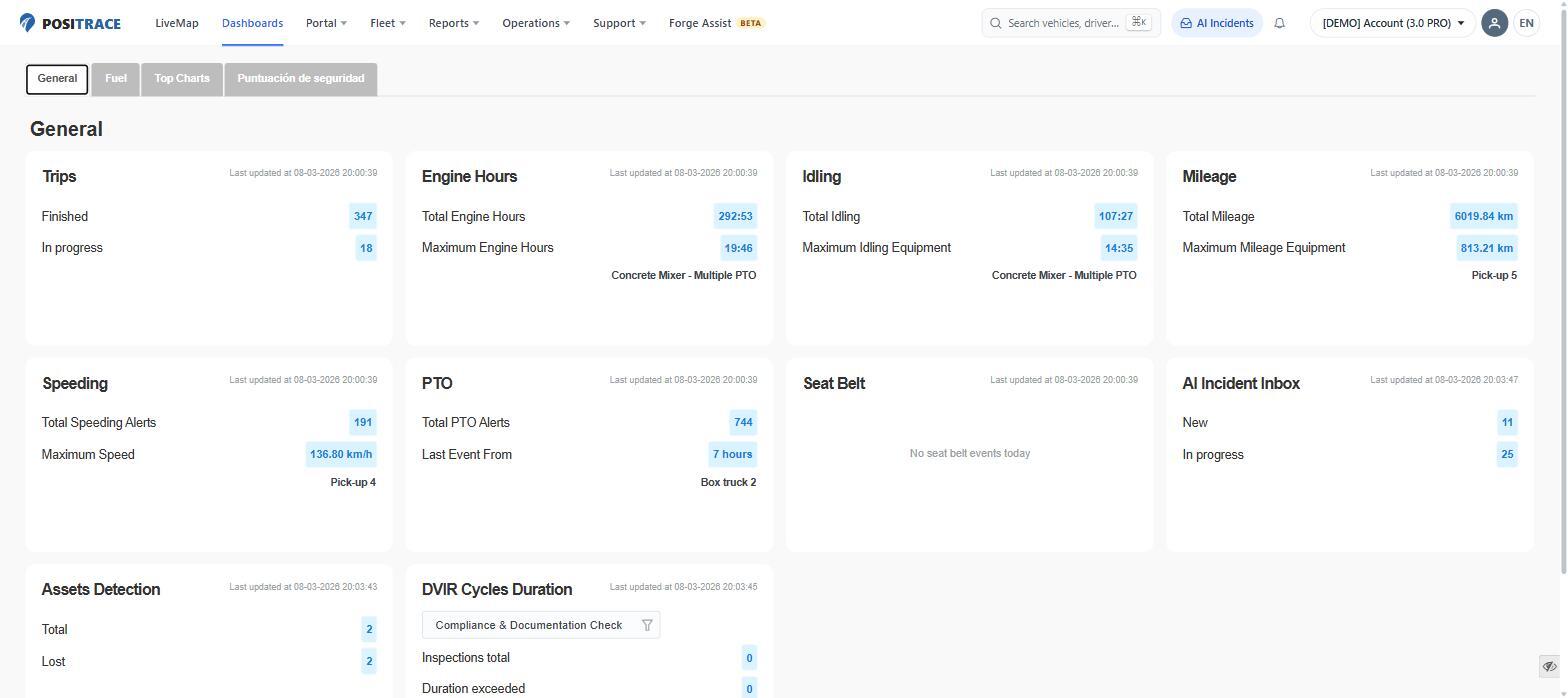
1. Dashboards (Fleet at a Glance)
Summarizes key metrics across your entire fleet.
- Time Ranges & Layouts: Switch between Today and Last 7 days, or click Edit to customize card layouts.
- Dashboard Tabs:
- General: Displays high-level cards for Trips, Engine Hours, Idling, Mileage, Speeding, Power Take-Off (PTO), Seat Belt usage, AI Incident Inbox, Assets Detection, and DVIR Cycles.
- Fuel: Tracks fleet-wide fuel consumption and efficiency trends.
- Top Charts: Ranks top-performing and outlier units across key metrics.
- Safety Score (BETA): Measures and ranks driver safety performance.
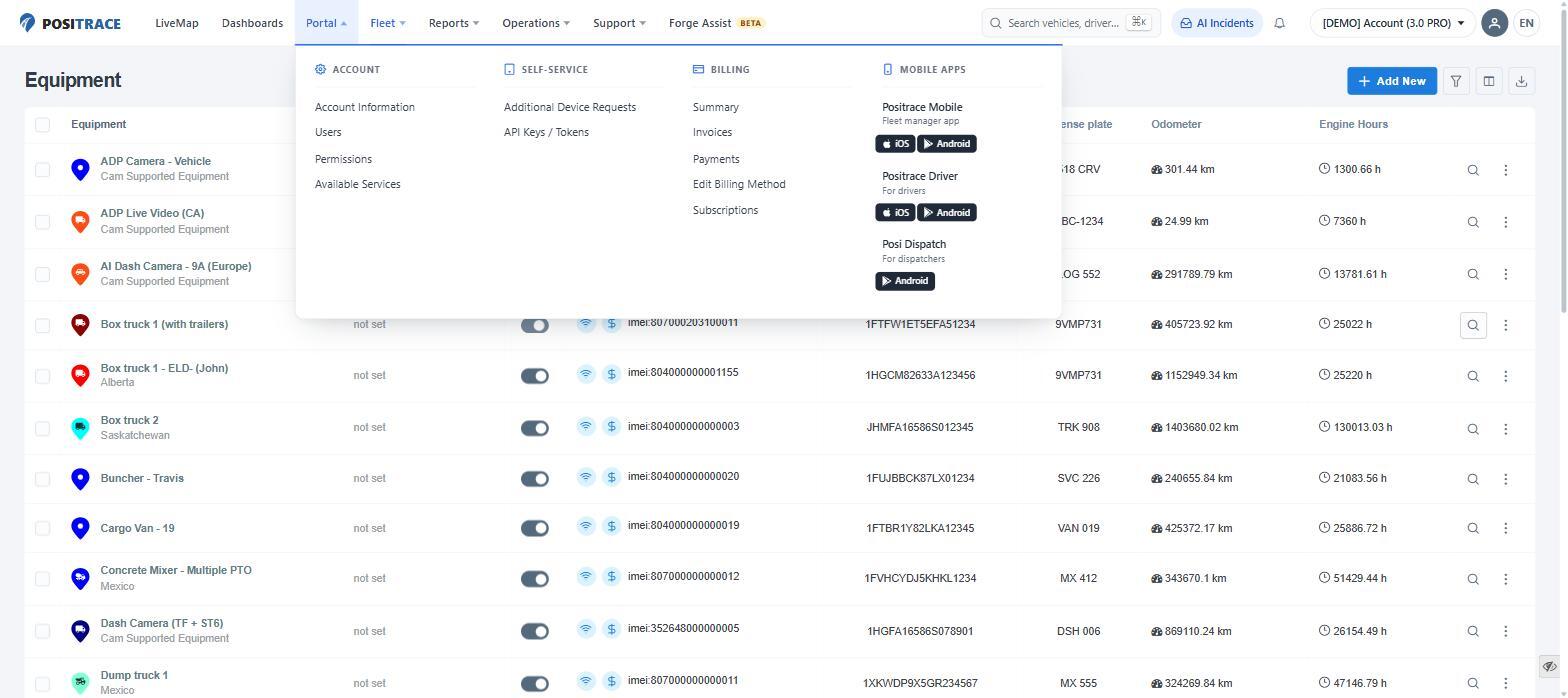
2. Portal (Account, Billing & Apps)
Centralizes your account management, billing, and mobile downloads.
| Sub-Menu | Included Features |
|---|---|
| Account | Account Information (settings, time zone, safety thresholds), Users, Permissions, and Available Services |
| Self-Service | Additional Device Requests and API Keys & Tokens |
| Billing | Summary, Invoices, Payments, Edit Billing Method, and Subscriptions |
| Mobile Apps | Direct download links for PosiTrace Mobile (managers), PosiTrace Driver (drivers), and Posi Dispatch (dispatchers) |
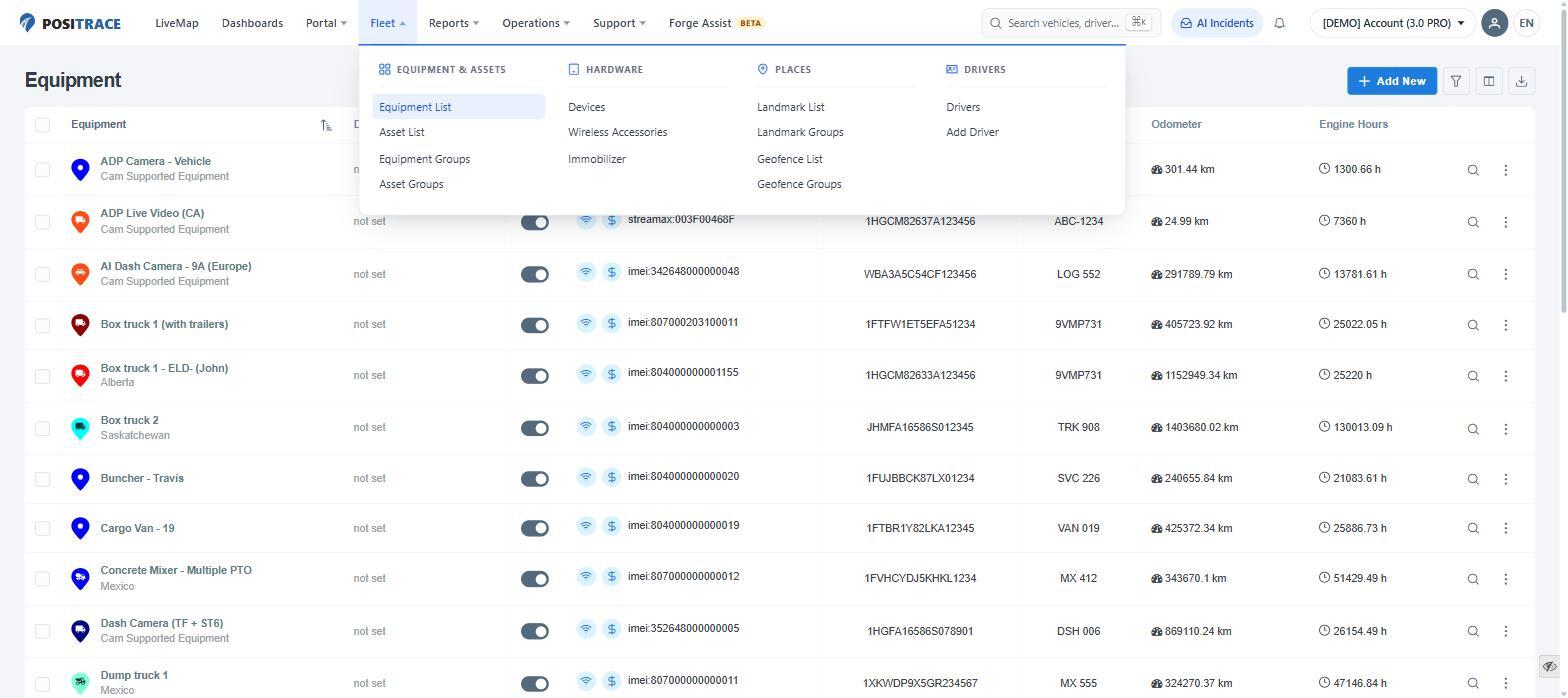
3. Fleet (Equipment, Places & Drivers)
Manage physical assets, virtual locations, paired hardware, and personnel.
- Equipment & Assets: Access the Equipment List, Asset List (non-powered tracked assets), and organize them into Equipment Groups and Asset Groups.
- Hardware: View connected Devices, paired Wireless Accessories, and manage Immobilizer engine-disable controls.
- Places: Define and organize Landmarks (and Landmark Groups) or Geofences (and Geofence Groups).
- Drivers: View all driver records or select Add Driver to create new profiles.
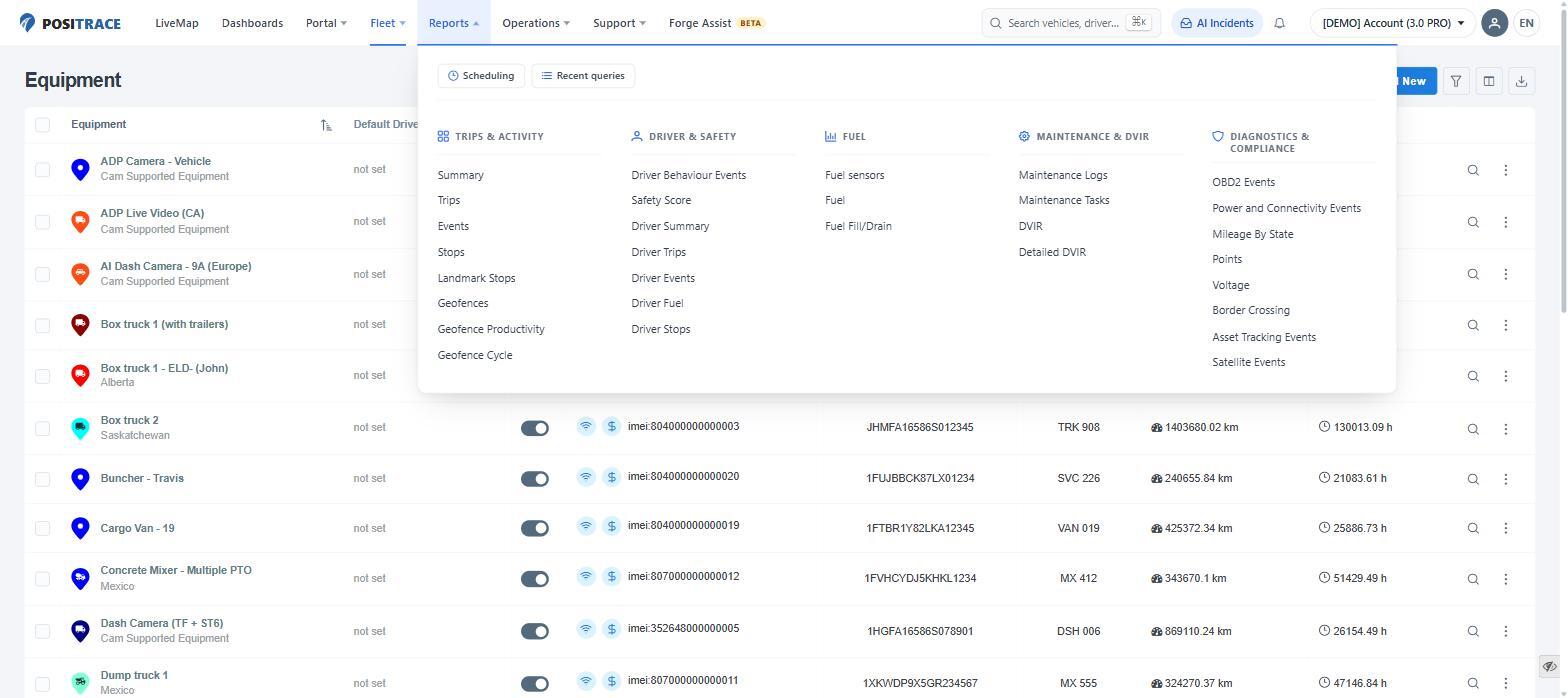
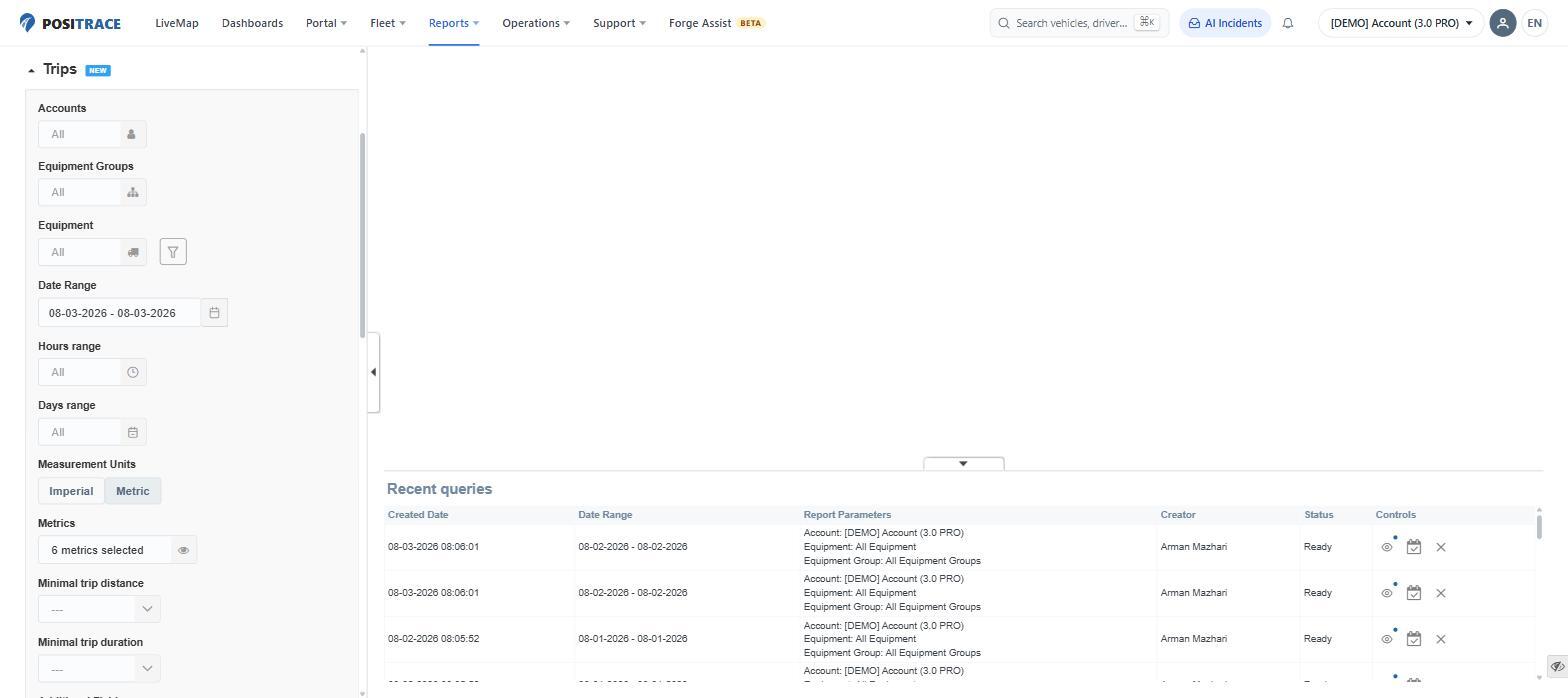
4. Reports (Grouped Analytics)
Run, schedule, and automate operational and compliance reports. Select units and date ranges on the left, choose Imperial or Metric units, and view results on the right.
- Trips & Activity: Summary, Trips, Events, Stops, Landmark Stops, Geofences, Geofence Productivity, and Geofence Cycle reports.
- Driver & Safety: Driver Behavior Events, Safety Score, and driver-specific breakdowns for Summary, Trips, Events, Fuel, and Stops.
- Fuel: Fuel consumption, Fuel Sensors, and Fuel Fill/Drain monitoring.
- Maintenance & DVIR: Maintenance Logs, Maintenance Tasks, DVIR, and Detailed DVIR.
- Diagnostics & Compliance: OBD2 Events, Power and Connectivity Events, Mileage By State, Points, Voltage, Border Crossing, Asset Tracking Events, and Satellite Events.
- Automated Tools: Use Scheduling to automate report deliveries, or Recent Queries to quickly rerun past searches.
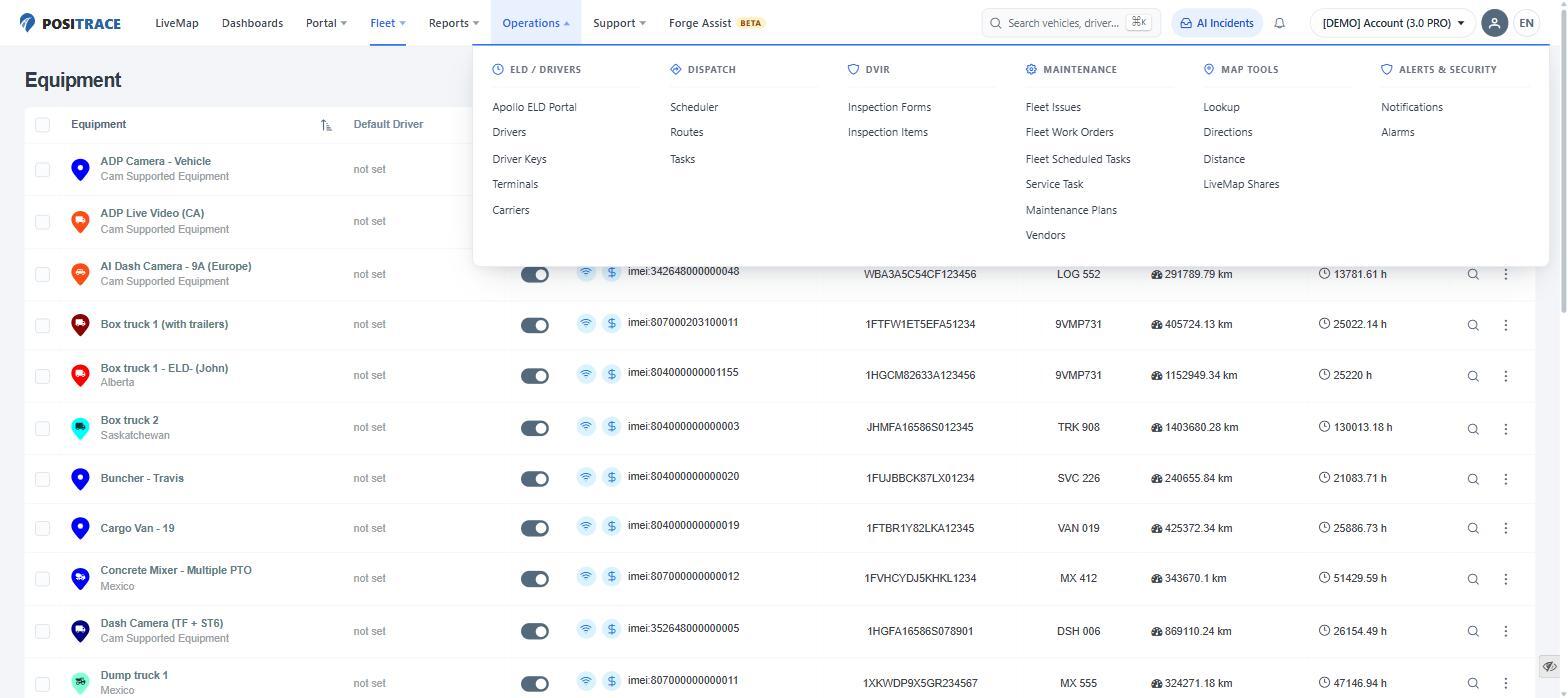
5. Operations (Dispatch, Maintenance & Compliance)
Tools for daily operational management, regulatory compliance, and route planning.
- ELD & Drivers: Access the Apollo ELD Portal, manage Drivers, assign Driver Keys, and set up Terminals and Carriers.
- Dispatch: Schedule work and organize trips using Scheduler, Routes, and Tasks.
- DVIR Templates: Configure Inspection Forms and Inspection Items.
- Maintenance Management: Track and manage Fleet Issues, Fleet Work Orders, Fleet Scheduled Tasks, Service Tasks, Maintenance Plans, and Vendors.
- Map Tools: Utilize Lookup, Directions, Distance measuring, and generate LiveMap Shares.
- Alerts & Security: Configure Notifications and manage system Alarms.
6. Forge Assist (AI Assistant — BETA)
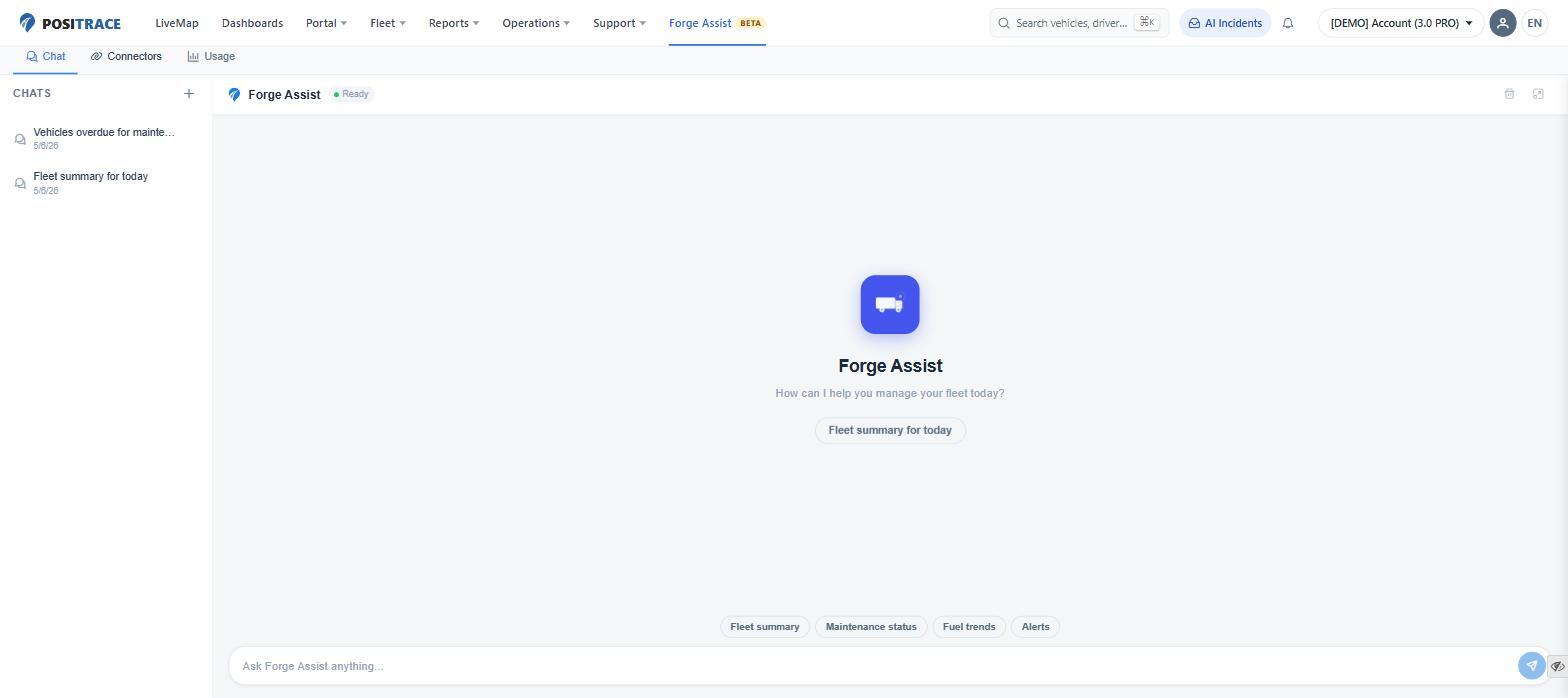
An AI-powered fleet assistant that responds to plain-language queries about your operational data.
- Interactive Chat: Ask plain-language questions or use quick-start prompts like Fleet summary, Maintenance status, Fuel trends, or Alerts.
- Data Transparency: Use the Connectors tab to inspect data sources and the Usage tab to view activity logs.
- Conversation History: Past interactions are saved in the left panel for quick reference.
Note: Because Forge Assist is currently in Beta, please verify critical decisions against primary reports and dashboards.
7. AI Incidents (Camera Safety Inbox)
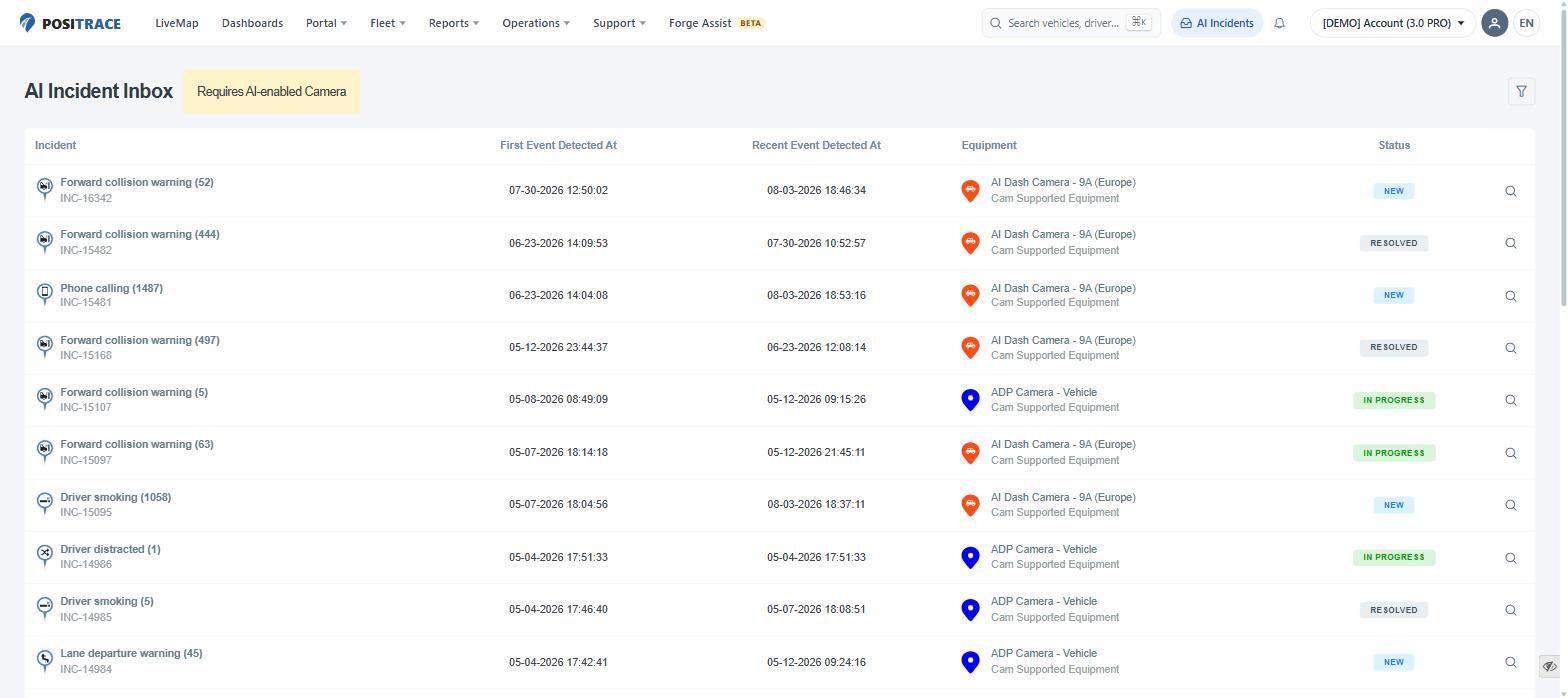
For units equipped with AI Dashcams, the AI Incident Inbox automatically logs camera-detected safety events—such as forward collision warnings, lane departures, distracted driving, phone usage, and smoking.
- Incident Details: Review initial and recent detection timestamps, vehicle identification, and video evidence.
- Workflow Management: Update event statuses (New, In Progress, or Resolved) to manage driver coaching and review workflows.
8. Support
- Tickets: Submit and track support requests.
- Tutorials: Access video walkthroughs and feature guides.
- FAQ: Browse answers to frequently asked questions.
- Release Notes: View updates and changes in each system release.