
What's new: Learn how to watch footage from multiple camera channels at the same time for an AI incident or video request. All channels stay synchronized with one seek bar and one set of controls, making it easy to view what happened from every camera at the same moment.
Overview
Cameras with more than one channel record several views of the same moment — typically the road ahead (ADAS), the cab and driver (DSM), and any further installed channel such as DMS. Until now you could only watch one channel at a time by switching between the channel tabs, which made it hard to see cause and reaction together.
Multi-view opens every channel of the same video together, under a single clock. Nothing changes about how video is requested, delivered or stored — this is a new way to watch footage you already have.
Who is this for?
- Safety and fleet managers reviewing AI-detected incidents — forward collision warning, driver fatigue, distraction, phone use, smoking — who need the full picture in one pass.
- Operations managers and dispatchers checking a specific moment of a trip.
- Anyone investigating a claim or complaint who needs road view and driver view at the exact same second.
1. Where to find it
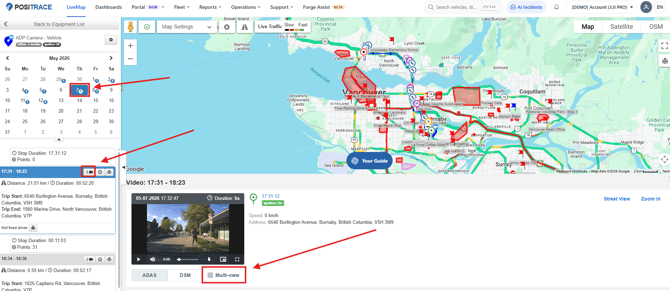
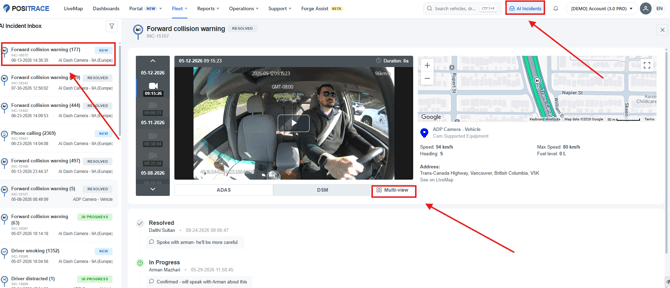
Multi-view is the last option in the channel tab row under the player, next to ADAS and DSM. It appears in both places where you watch recorded footage.
On the LiveMap, from a trip
Open the equipment, pick a day in the calendar, and choose a trip. Trips that have footage show a camera badge with the number of videos (for example 3 or 9). Open a video from the trip's Video panel, then click Multi-view.
From the AI Incident Inbox
Open AI Incidents in the top bar, select an incident from the inbox, and click Multi-view under the incident video.
On a video with a single channel the control reads Expand instead, and opens that one channel in a larger player. The existing ADAS / DSM tabs are unchanged — Multi-view is an extra way in, never the default.
2. What the Multi-view window shows
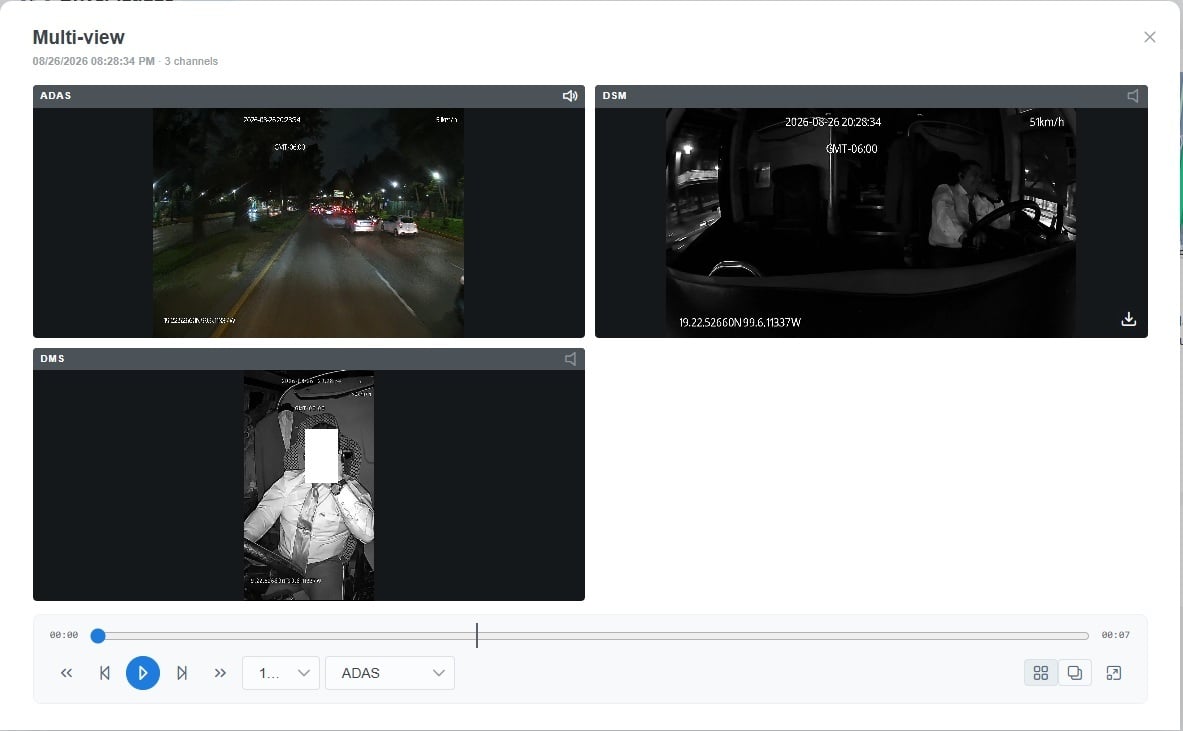
The window header repeats the date and time of the footage and how many channels it contains (for example 3 channels). Each channel gets its own tile, labelled with its channel name, and every tile carries a speaker icon showing whether it is the one you are hearing.
3. Playback controls
There is one timeline for the whole set, with the elapsed and total time at each end. Every control drives all channels at once:
| Control | What it does |
|---|---|
| Play / Pause | Starts and stops every channel together. |
| Seek bar | Drag to any moment — every channel jumps to the same moment. |
| Skip back / forward (the double arrows) | Jumps 10 seconds in either direction, on all channels. |
| Frame step (the single arrows with a bar) | Advances one frame at a time — for pinpointing the instant of impact, or the moment the driver looked away. |
| Speed (the 1... dropdown) | Slow motion or faster review, applied to every channel. |
| Audio channel (the channel dropdown) | Chooses which channel you hear. See below. |
Channels stay locked to each other for the whole clip. If one channel is slow to load, the others wait for it rather than running ahead.
4. Choosing which channel you hear
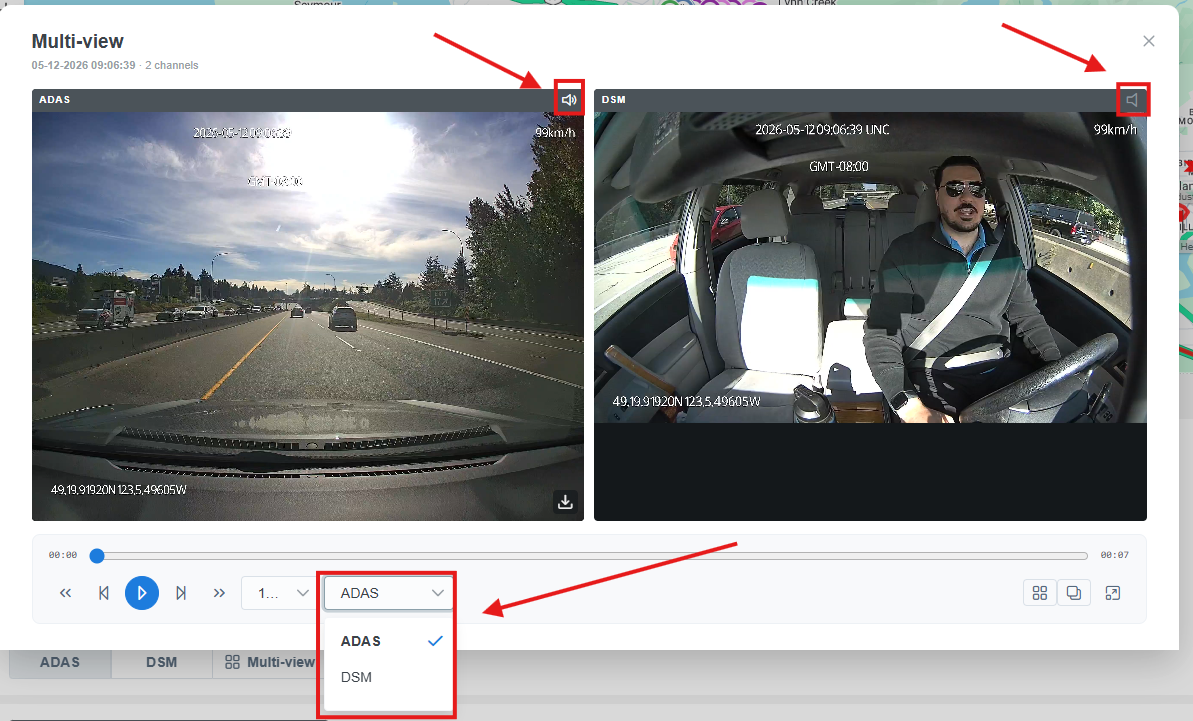
Audio plays from one channel at a time so you never get an echo. Change it either way:
- Pick a channel in the audio dropdown in the control bar — the active channel is ticked.
- Or click the speaker icon in a tile's header.
Switching audio does not jump the video or interrupt playback — the sound simply moves to the channel you chose.
5. Layouts
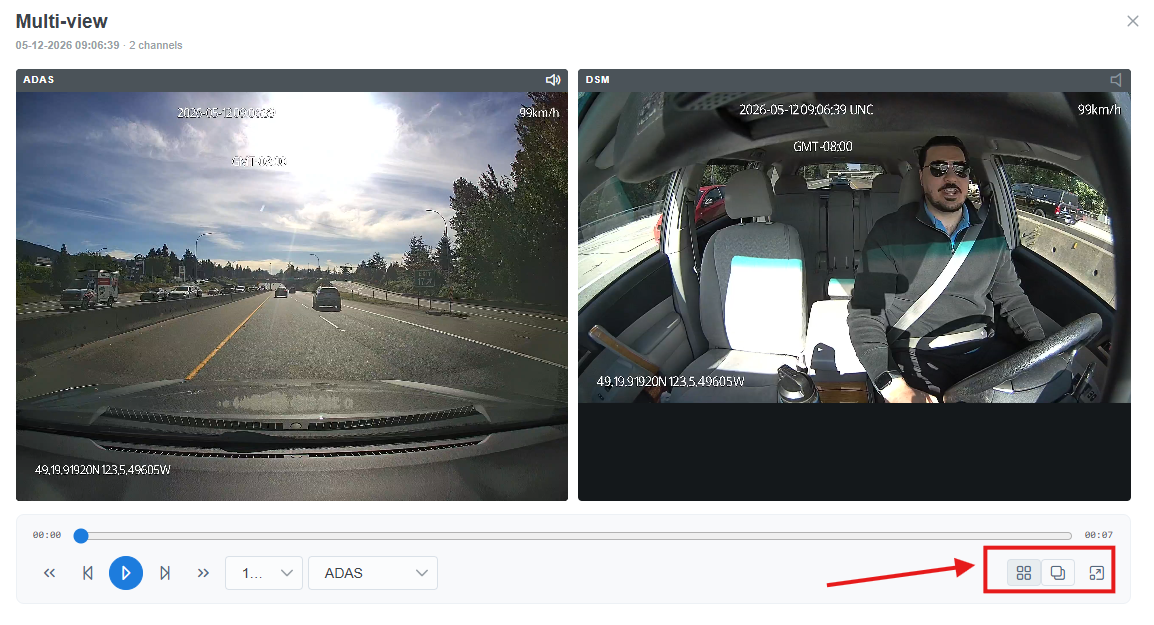
Three buttons sit at the bottom right of the window:
| Button | What it does | Best for |
|---|---|---|
| Grid | All channels at equal size. | Comparing channels side by side and getting the overall picture. |
| Focus | One channel large, the rest as thumbnails beside it. Click a thumbnail to promote it to the large position. | Reading a plate, a face or a road sign while keeping an eye on the other views. |
| Full screen | Expands the window to fill the screen. | Detailed review, or showing footage to someone else. |
In Focus layout the promoted channel takes the large tile and the others stay visible as thumbnails:
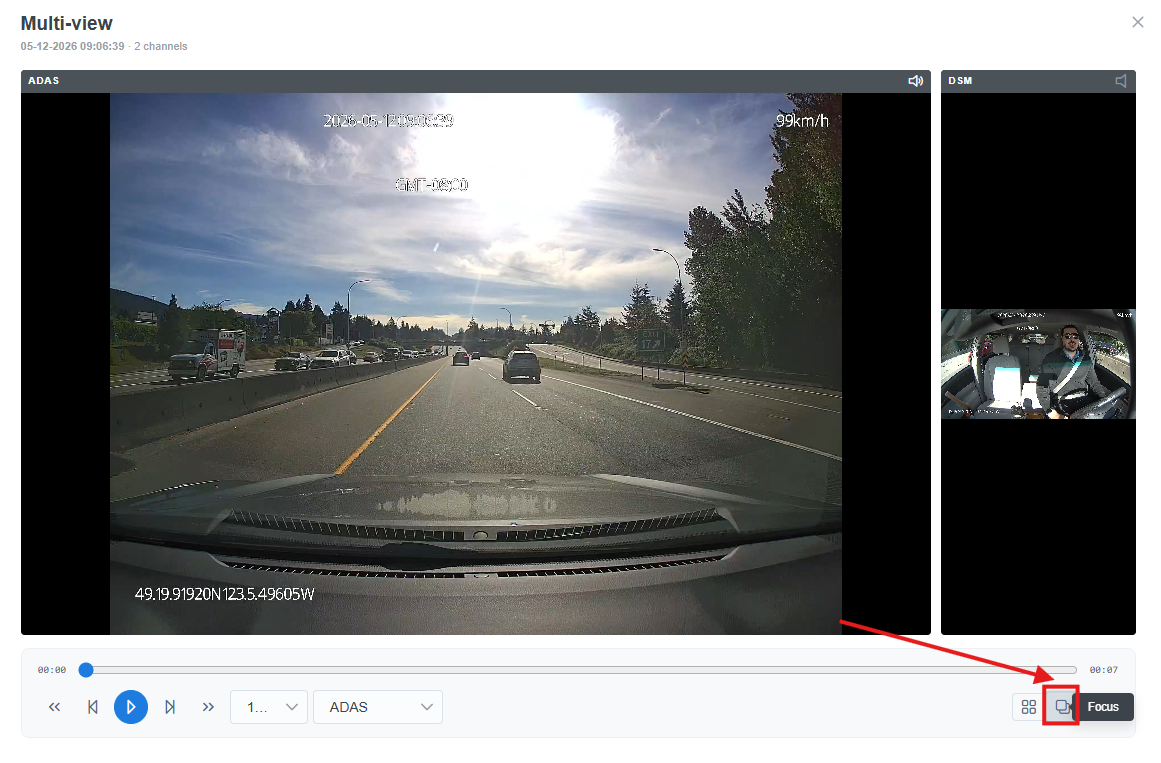
Switching layout or promoting a channel never reloads the video, loses your position, or changes play state, speed or audio channel. Your layout choice is remembered as you move from one video to the next during the same session.
Multi-view opens over whatever you were working in, so you keep your place on the map or in the inbox behind it:
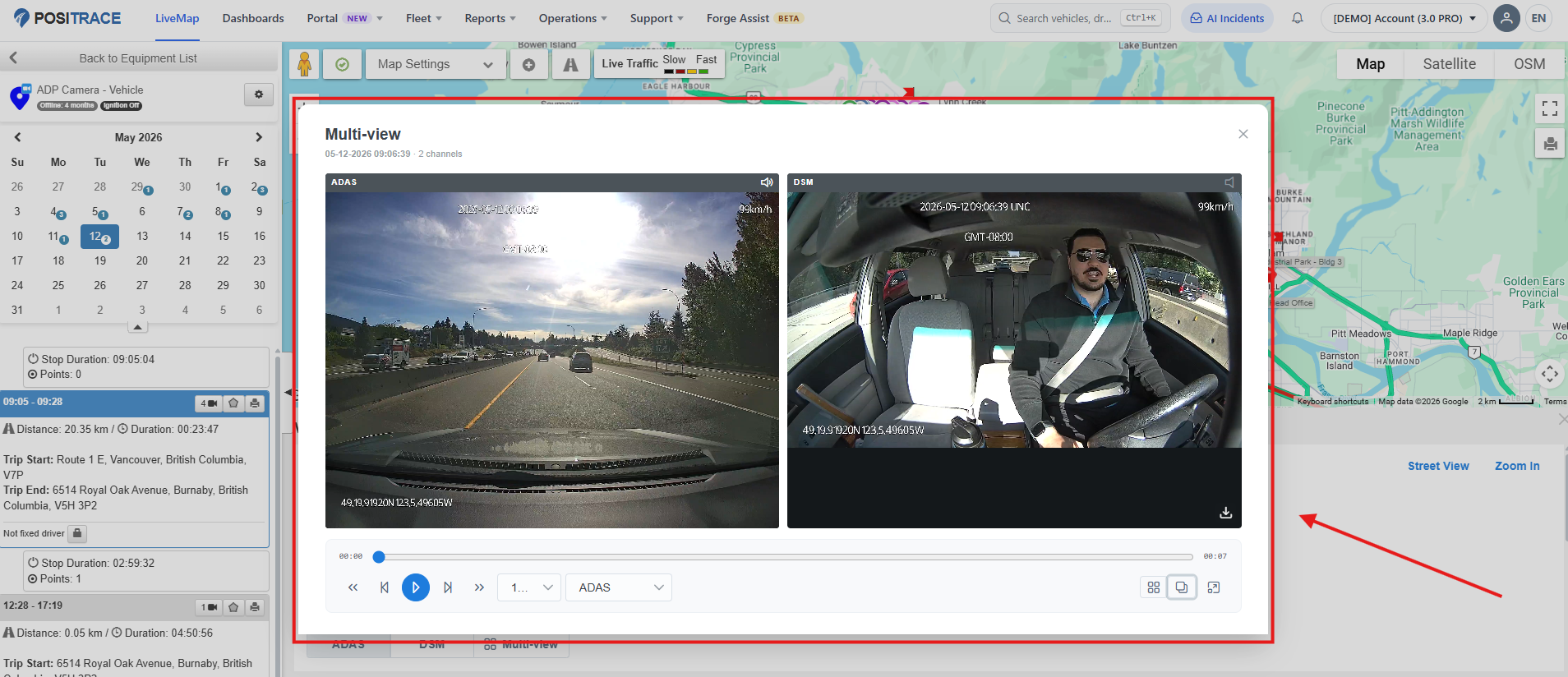
6. Downloading footage
Hover a tile and use its download icon to save that channel. Each channel downloads as its own file — channels are not merged into a single video.
Good to know
- A channel with no footage keeps its place. If one camera has nothing recorded for the period you are watching, its tile shows an empty state and the other channels keep playing normally.
- Not all incidents have all channels. How many channels come back depends on the camera installed and how the event is configured. Multi-view shows what was captured.
- Live viewing is unchanged. Multi-view is for recorded footage; live streaming and snapshots work exactly as before.
- The single-channel player still works the same. Its channel tabs, controls and downloads behave exactly as they do today.
Frequently asked questions
Why don't I see a Multi-view button?
Either the video has only one channel — you will see Expand instead — or no video file has arrived for that request yet.
One of the tiles is empty. Is something broken?
Usually not. It means that channel has no footage for the time range you are watching. If you expected footage from that camera and it is consistently missing, contact PosiTrace Support.
Can I hear two channels at once?
No — one audio channel at a time, by design. You can switch between them freely without losing your place.
Does this change how I request video?
No. Requesting, waiting for and storing footage is completely unchanged.
Can I use Multi-view for a live camera feed?
No. It applies to recorded video only.
Do the channels really line up exactly?
Yes — they are held to the same moment throughout the clip, so what you see across tiles is the same instant.
Have feedback on Multi-view? Tell us which layout you use most and what you review it for — it shapes what we build next for incident review.