
1. Overview
The Maintenance report is a single, always-current view of your fleet's maintenance. It watches each piece of equipment's odometer, engine hours, and the calendar, and tells you exactly what is on track, what is coming due, and what is already overdue.
The report has three parts, top to bottom:
- Summary tiles — headline counts of your tasks by status (Total, Overdue, Due Soon, Regular).
- Charts — Status by Equipment, and Most Frequent Maintenance Tasks, for a quick visual read of where the work sits.
- Task table — one row per maintenance task, showing the equipment, the job, its status, and the readings behind it.
Each row in the table is a single maintenance task on a single piece of equipment — for example, “Oil Change” on “ADP Camera - Vehicle.” PosiTrace compares the equipment's current readings against the task's schedule and assigns a status: Regular, Overdue, or Due Soon.
2. How to run the report
- Sign in to PosiTrace.
- Open the Maintenance report from your menu (under Reports / Maintenance).
- The report loads with current data — the summary tiles, both charts, and the full task table.
- Each panel shows a small timestamp (for example, “an hour ago”) indicating when its data last refreshed. Reopen or refresh to pull the latest readings.
|
|
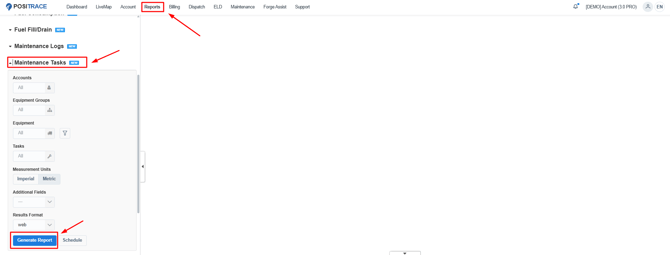
Figure 1. The Maintenance report
|
|
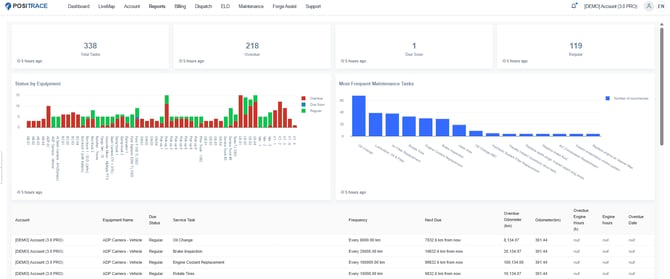
Figure 2. The Maintenance report - Generated Version
|
The status counts add up to Total Tasks Overdue + Due Soon + Regular = Total Tasks. In the example shown, that is 218 + 1 + 119 = 338. |
3. What each column and chart means
3.1 The summary tiles
The four tiles at the top total your maintenance tasks by status. Click a tile to filter the report to just those tasks.
|
Tile |
What it counts |
In this example |
|---|---|---|
|
Total Tasks |
Every maintenance task across the fleet. The other three tiles add up to this. |
338 |
|
Overdue |
Tasks past their due point — needing attention now. |
218 |
|
Due Soon |
Tasks approaching their due point, within the warning window. |
1 |
|
Regular |
Tasks on track, with room remaining. |
119 |
|
|

Figure 3. Tiles in Report
3.2 The charts
Status by Equipment. A stacked bar for each piece of equipment. The height of a bar is the number of maintenance tasks for that unit, and the coloured segments split those tasks by status. Use it to spot at a glance which equipment is carrying the most overdue work.
Most Frequent Maintenance Tasks. One bar per service task, showing how many times that job occurs across the whole fleet. Use it to see which jobs dominate your workload — in the example, Oil Change is by far the most common.
|
Chart colour legend In the Status by Equipment chart: Due Soon is blue, Overdue is red, and Regular is green. |
|
|
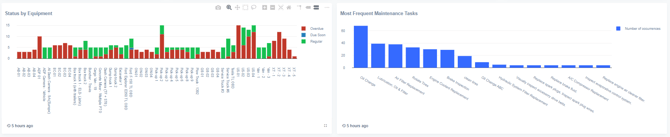
Figure 4. The two charts and their legends.
3.3 The task table columns
Each row is one maintenance task on one piece of equipment. The columns tell you what the job is, which equipment it belongs to, whether it is due, and the readings behind that decision.
|
|
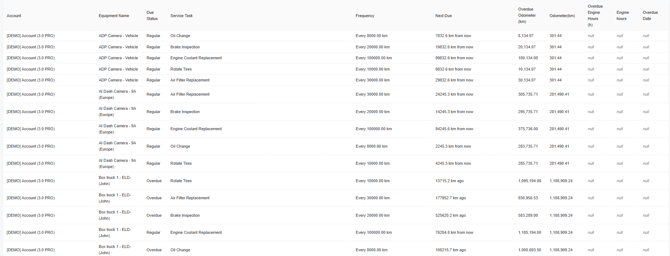
Figure 5. The task table and its columns.
|
Column |
What it tells you |
|---|---|
|
Account |
The account the equipment belongs to. Helpful when you manage more than one account. |
|
Equipment Name |
The unit the task applies to — truck, trailer, camera, or other tracked equipment. |
|
Due Status |
The task's current status: Overdue, Due Soon, or Regular (see Section 4). |
|
Service Task |
The maintenance job — for example, Oil Change, Brake Inspection, or Rotate Tires. |
|
Frequency |
How often the task repeats — a distance (e.g. “Every 8000.00 km”), engine hours, or a time period. |
|
Next Due |
How much is left before the task is due, relative to current readings — e.g. “7,832.6 km from now,” or a date. |
|
Overdue Odometer (km) |
The odometer reading at which the task becomes due. Once the equipment passes this reading, the task is overdue. |
|
Odometer (km) |
The equipment's current odometer reading. |
|
Overdue Engine Hours (h) |
The engine-hour reading at which an hours-based task becomes due. Shows null when the task is not based on engine hours. |
|
Engine hours |
The equipment's current engine-hour reading. Shows null when engine hours are not tracked for that unit. |
|
Overdue Date |
The date on which a calendar-based task becomes due. Shows null when the task is not based on a date. |
|
What “null” means null simply means that interval does not apply to this task. A distance-based oil change, for instance, has no engine-hour or date threshold, so those columns show null. Most tasks are driven by one interval, so seeing null in the others is normal. |
4. Understanding the status
Status is the heart of the report. It is calculated for you and refreshes whenever the equipment's readings update.
|
Status |
Meaning |
What to do |
|---|---|---|
|
Overdue |
The equipment has passed the point at which the task should have been done. |
Schedule the work as soon as possible to avoid wear or compliance risk. |
|
Due Soon |
The task is approaching its due point and falls within the threshold window. |
Plan the work into your upcoming schedule. |
|
Regular |
The task is on track with room remaining. |
No action needed — keep monitoring. |
How the status is decided
For each task, PosiTrace knows the reading at which it becomes due — the Overdue Odometer, Overdue Engine Hours, or Overdue Date. It compares the equipment's current reading against that due point, and against a “due soon” threshold window:
- Current reading is past the due point → Overdue.
- Current reading is inside the warning window → Due Soon.
- Otherwise → Regular.
|
When a task has more than one trigger A task can be set on more than one interval at once — say, every 8,000 km or every 6 months, whichever comes first. The Due Status then shows the most urgent of its triggers. Intervals that don't apply (shown as null) are ignored. |
A worked example
Take the first row from the report: Oil Change on ADP Camera - Vehicle, set to repeat every 8,000 km. The current Odometer is 301.44 km, and the task becomes due (Overdue Odometer) at 8,134.07 km — so Next Due reads “7,832.6 km from now,” and the status is Regular. Here is how the same task would change as the equipment is driven:
|
Odometer (current) |
Overdue Odometer (due at) |
Threshold |
Next Due |
Due Status |
|---|---|---|---|---|
|
301.44 km |
8,134.07 km |
1000 km |
7,832.6 km from now |
Regular |
|
7,950 km |
8,134.07 km |
1000 km |
184 km from now |
Due Soon |
|
8,300 km |
8,134.07 km |
1000 km |
165.9 km over |
Overdue |
5. Filtering, sorting, and exporting
The report is most useful when you narrow it to what matters right now, then take that view out to share.
Filtering- Use the basic report filers to filter the report.
|
|
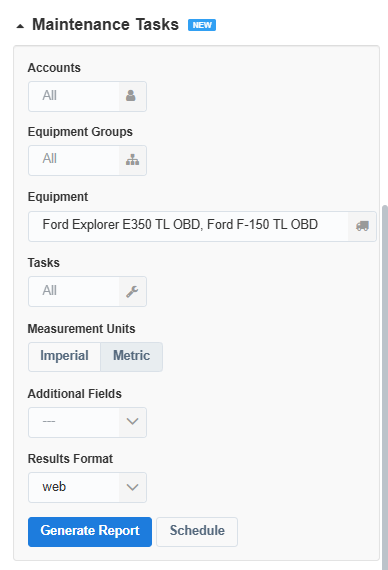
Figure 6. Filtering the report
SortingClick a column heading to reorder the table — for example, by Due Status to group overdue work together, by Next Due to see what's coming first, or by Overdue Odometer to see how far past due each task is.
Exporting- Filter and sort the report to the view you want to share.
- Choose Export and pick a format.
- The file downloads with exactly the rows and columns currently shown.
|
|
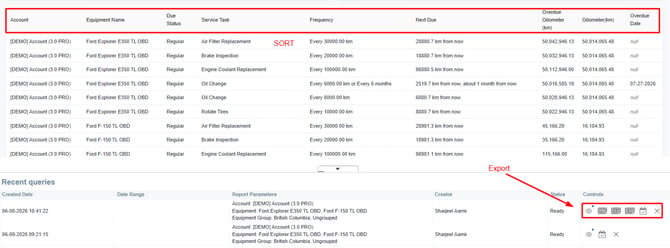
Figure 7. Sorting, and exporting the report.
Need More Information?
We're excited to introduce Maintenance Logs Reports in Locate, making it easier to track vehicle maintenance, stay organized, and maintain accurate records of completed service tasks.
Not sure whether this feature is included in your subscription? Interested in learning how it can benefit your business? Simply create a Support Ticket in Locate by navigating to Support > Tickets > Add New.
Your request will be routed to the appropriate team, who will review your account and provide additional information based on your subscription plan and account type.