
Overview
The Live Map in Locate now makes it easy to identify equipment with installed cameras and filter your map based on camera availability.
With this feature, you can:
- Quickly identify camera-enabled equipment.
- Filter your map to display only the equipment you need.
- Spend less time opening individual equipment records.
Who is this for?
This feature is useful for:
- Operations Managers who need to identify and monitor camera-equipped equipment.
- Dispatchers who prioritize equipment with cameras.
- Any Locate user who wants to quickly distinguish between camera and non-camera equipment.
Camera Indicator on the Live Map
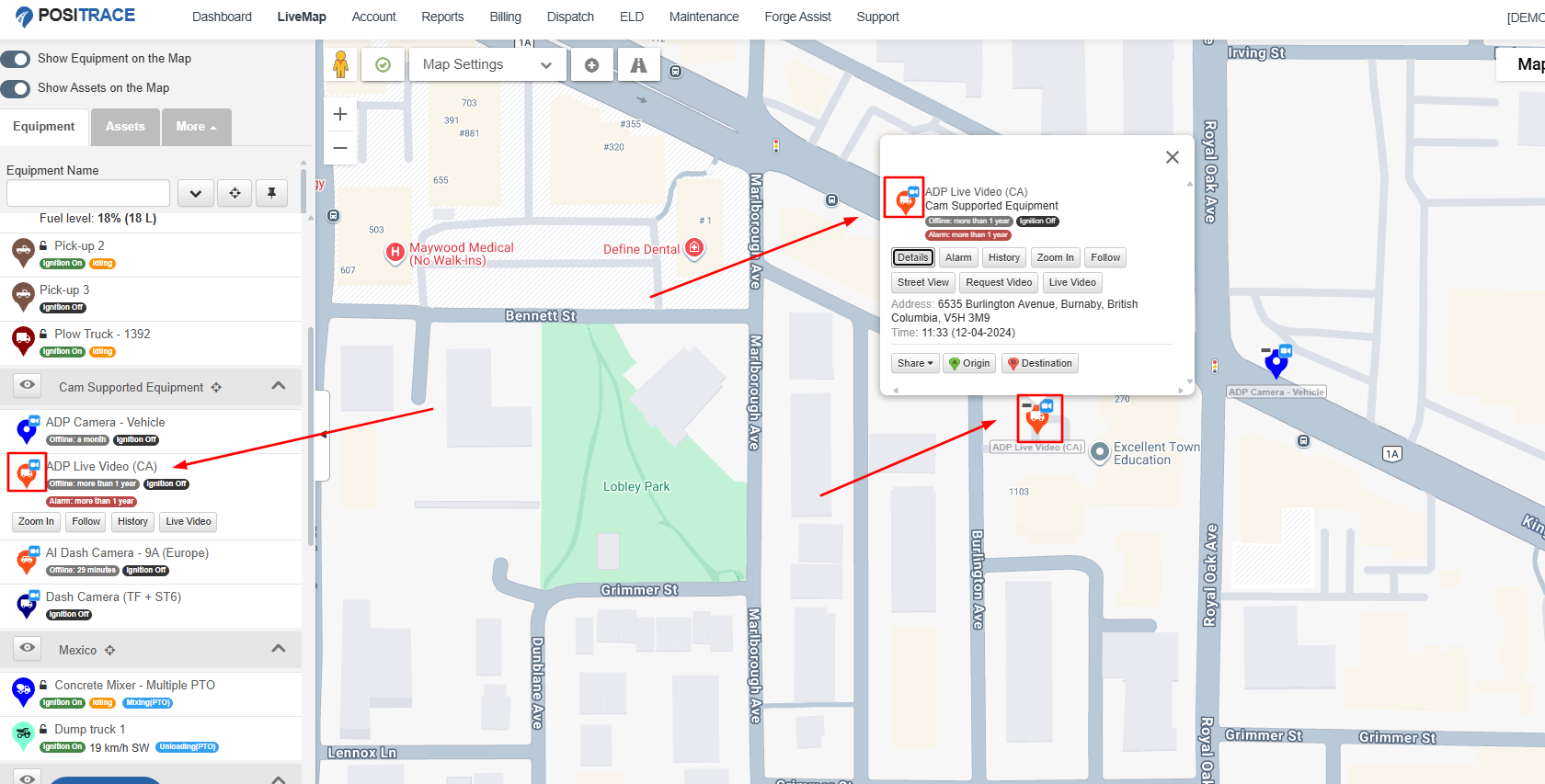
Equipment with an installed camera now displays a camera icon on its map marker.
Equipment without a camera does not display an icon.
Benefits
- Easily identify camera-enabled equipment at a glance.
- Visible at all zoom levels.
- Works in both Light and Dark map themes.
- Updates automatically as equipment data changes.
- Available in:
- Single Account view
- All Accounts view
- Multi-account equipment selection
Before and After
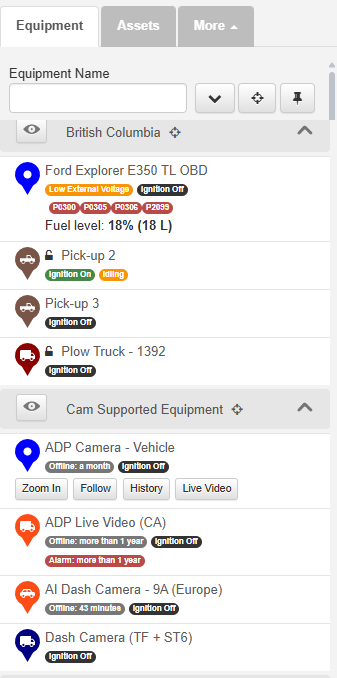
Before
There was no visual indication showing which equipment had cameras installed.
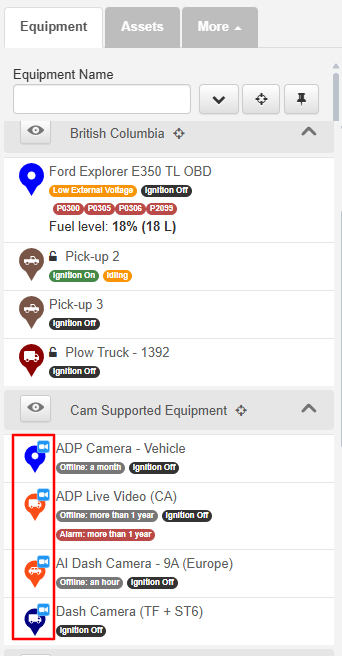
After
Equipment with installed cameras is clearly identified with a camera icon.
Camera Availability Filter
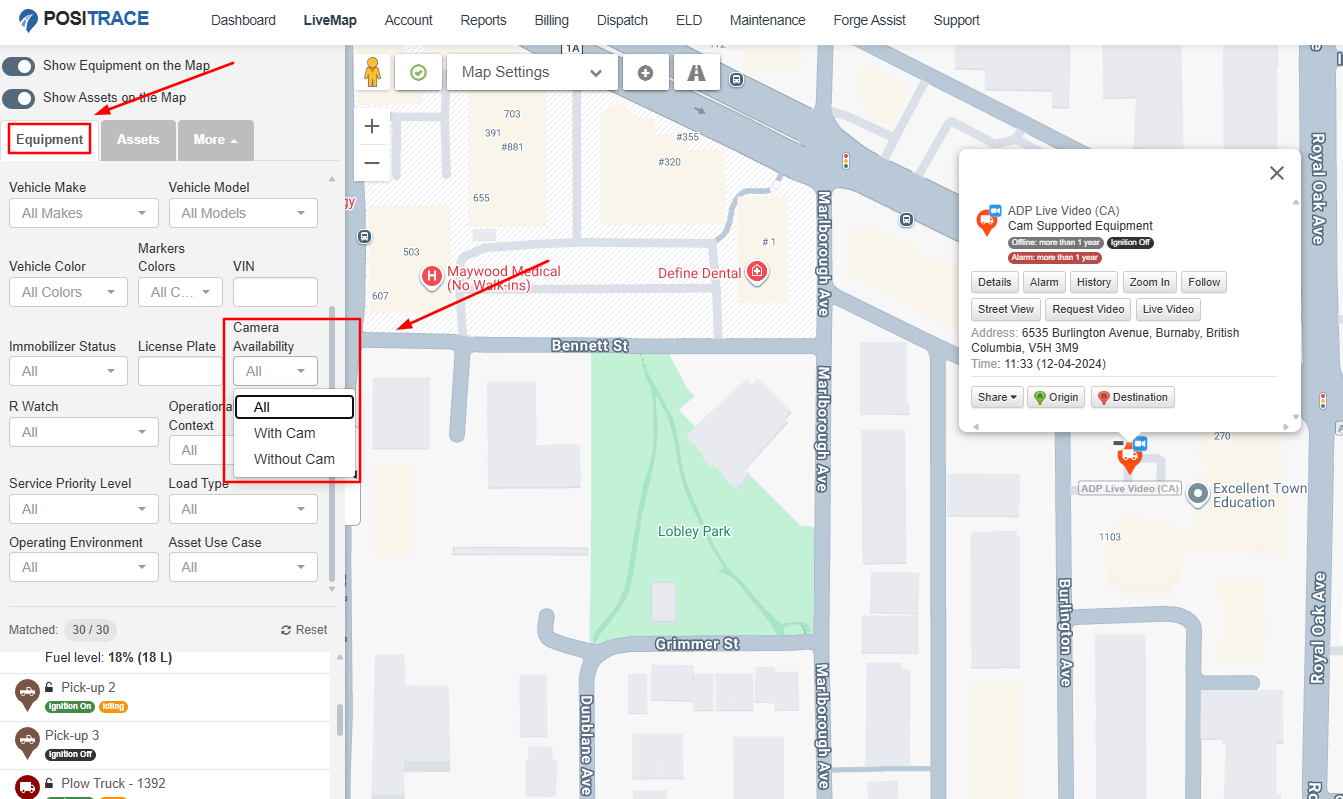
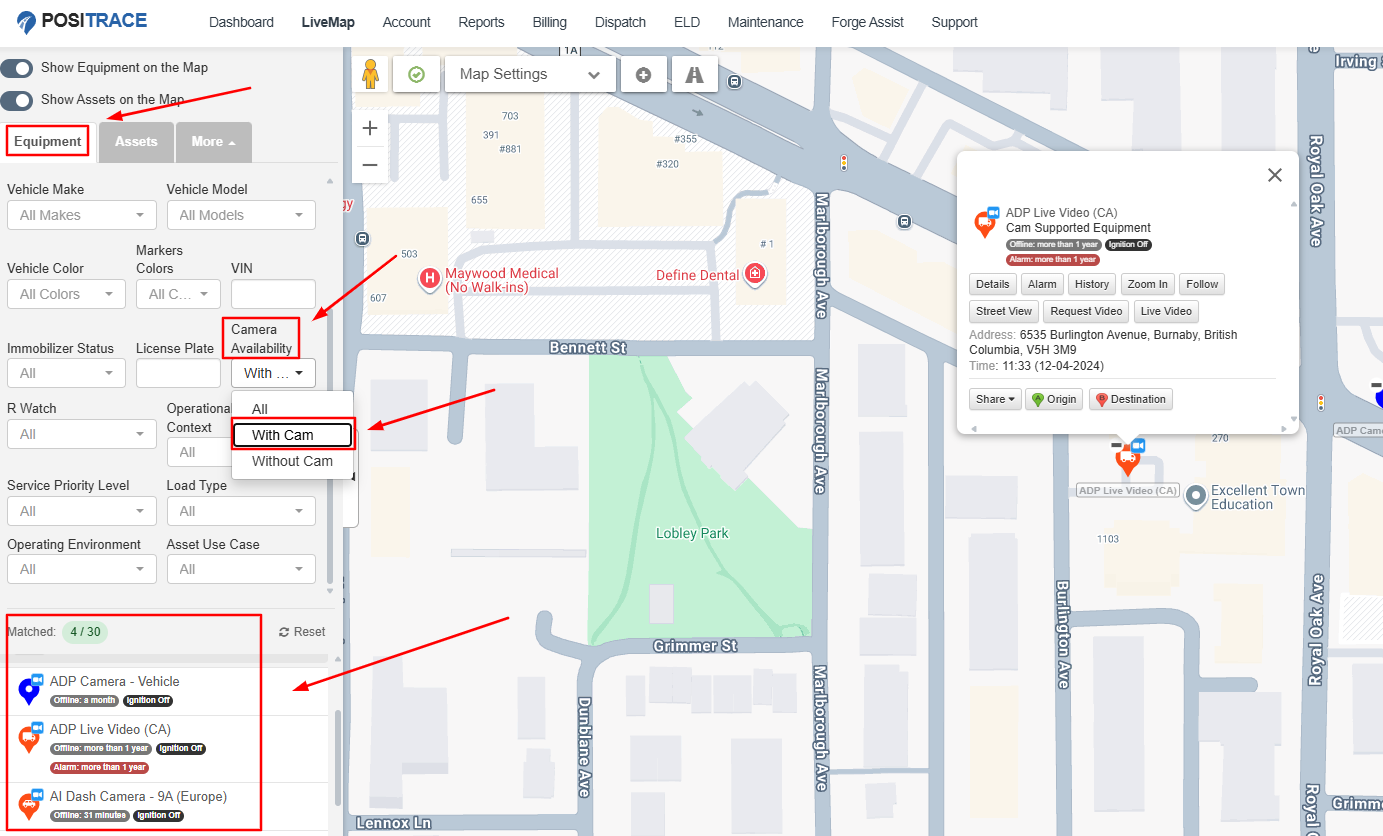
A new Camera Availability filter has been added to the Equipment dropdown on the Live Map.
Use it to quickly display only the equipment you want.
Filter Options
| Option | Displays |
|---|---|
| All (Default) | All equipment |
| With Cam | Only equipment with an installed camera |
| Without Cam | Only equipment without an installed camera |
How to Use the Filter
- Open the Live Map.
- Click the Equipment dropdown.
- Locate the Camera Availability filter.
- Select one of the following:
- All
- With Cam
- Without Cam
- The map updates immediately to display matching equipment.
The filter works in:
- Single Account view
- All Accounts view
- Multi-account equipment selection
Good to Know
- Equipment with an unknown camera status is treated as Without Cam.
- This feature only identifies and filters camera-equipped equipment.
- It does not provide:
- Live camera feeds
- Video playback
- Camera installation
- Camera configuration
- Performance remains fast even when viewing large fleets.
Frequently Asked Questions
Why don't I see a camera icon on my equipment?
The camera icon only appears on equipment with an installed camera. If none of your equipment has cameras, no icons will be displayed.
Can I watch the camera feed from the Live Map?
No. This feature only indicates whether equipment has a camera installed and allows filtering by camera availability. Camera viewing is handled separately.
Does the Camera Availability filter affect other users?
No. The filter only changes your own Live Map view and does not affect other users.