
To add a new user to your account, just follow these steps.
- Go to Portal → Account → Users
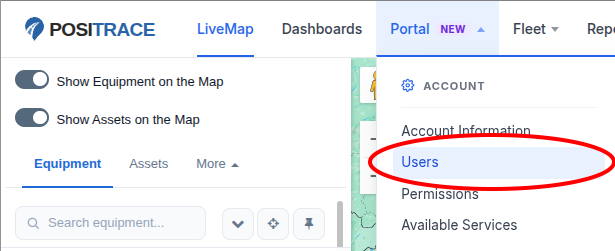
- Click the button labelled + Add New.

- Fill out the fields as appropriate.
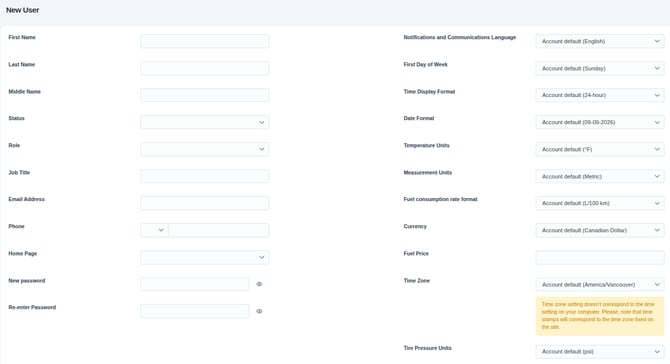
Note that you don't need to fill everything out — the only mandatory fields are Last Name, Status, Role, Email Address, and Password.
Important: make sure that Status is set to Active to allow this user to log in. If at any time you wish to disable the account, you can set this to Inactive. - Scroll down and click Save.
Once you've created their account, a verification email will be sent to the address you entered in the Email Address field. Please ensure that the new user opens this email and completes the verification process.
If, for any reason, you need to use the same Email Address to create multiple account, you can use plus addressing — simply add a plus sign and some text to the end of the first part of the address. For example, if you want to make a standard account, admin account, and driver account all using the same email address, you can create the accounts with the email addresses user@example.com, user+admin@example.com, and user+driver@example.com.