
Multi-view plays every camera channel of a recorded video side by side, in sync, with one timeline and one set of controls. Use it to see the road and the driver at the same moment, for example when you review an AI incident or a claim.
Overview
Cameras with more than one channel record several views of the same moment. Channel names come from the camera: most AI dash cams have ADAS (the road ahead) and DSM (the driver), and some cameras have more channels. Multi-view opens all of them together, under one clock. It doesn't change how video is requested, delivered or stored.
It's useful for:
- Safety and fleet managers reviewing AI-detected incidents such as forward collision warnings, fatigue, distraction, phone use or smoking.
- Operations managers and dispatchers checking a specific moment of a trip.
- Anyone investigating a claim or complaint who needs the road view and the driver view at the same second.
Where to find it
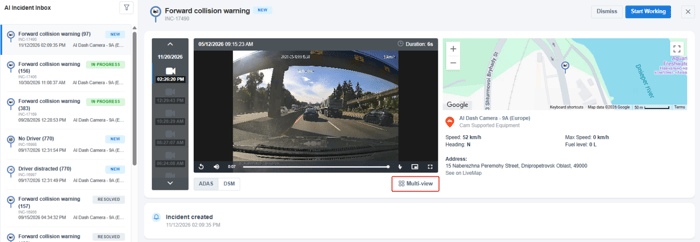
The Multi-view button is to the right of the ADAS and DSM tabs under the player. On a video with a single channel the button reads Expand instead and opens that channel in a larger player.
From the AI Incident Inbox
Click AI Incidents in the top bar, select an incident, and click Multi-view under the incident video.
On the LiveMap, from a trip
Select the vehicle, click History, pick a day in the calendar and find the trip. Trips with footage show a camera badge with the number of videos, for example 10. Click the badge to open the trip's Video panel, then click Multi-view under the video.
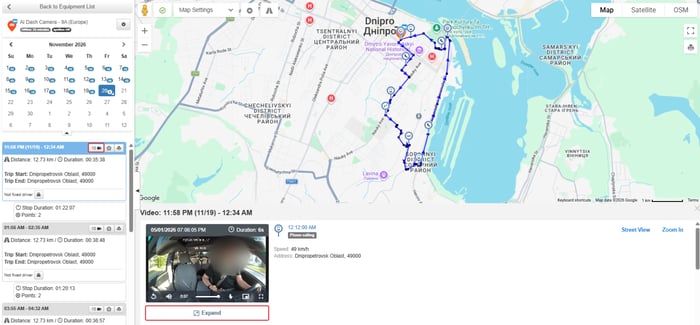
This camera records a single channel, so the button under the video reads Expand.
The Multi-view window
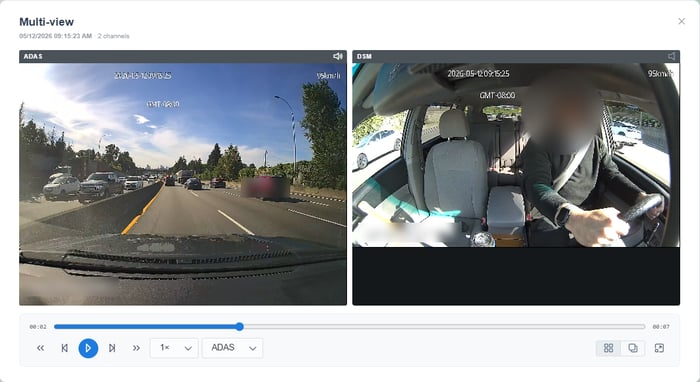
The header shows the date and time of the footage and how many channels it has, for example 2 channels. Each channel has its own tile, labelled with its name, and a speaker icon that shows which channel you're hearing.
Playback controls
There's one timeline for all channels, with the elapsed and total time at each end. Every control works on all channels at once:
| Control | What it does |
|---|---|
| Play / Pause | Starts and stops every channel together. |
| Seek bar | Drag to any moment. Every channel jumps to the same moment. |
| Skip back / forward (the double arrows) | Jumps 10 seconds in either direction, on all channels. |
| Frame step (the single arrows with a bar) | Moves one frame at a time, to find the instant of an impact or the moment the driver looked away. |
| Speed (the 1× dropdown) | Slow motion or faster review, on every channel. |
| Audio channel (the channel dropdown) | Chooses which channel you hear. See below. |
Channels stay in sync for the whole clip. If one channel is slow to load, the others wait for it.
Choose which channel you hear
Audio plays from one channel at a time, so you never get an echo. To change it, pick a channel in the audio dropdown in the control bar (the active channel is ticked), or click the speaker icon on a tile.
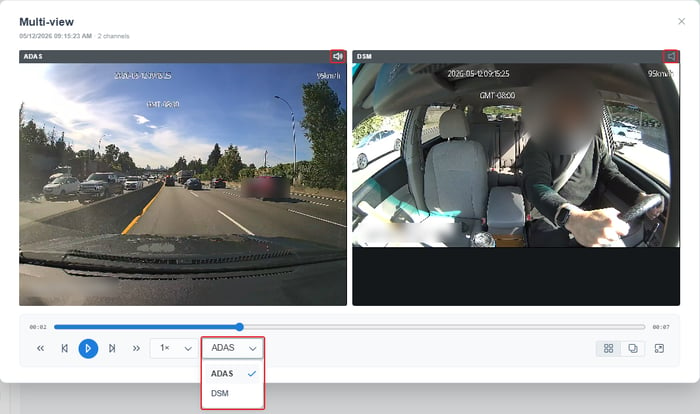
Switching audio doesn't move the video or interrupt playback.
Layouts
Three buttons sit at the bottom right of the window:
| Button | What it does | Best for |
|---|---|---|
| Grid | All channels at the same size. | Comparing channels side by side. |
| Focus | One channel large, the others as thumbnails. Click a thumbnail to make it the large one. | Reading a sign or checking a detail while keeping an eye on the other views. |
| Full screen | Fills the screen with the window. | Detailed review, or showing footage to someone else. |
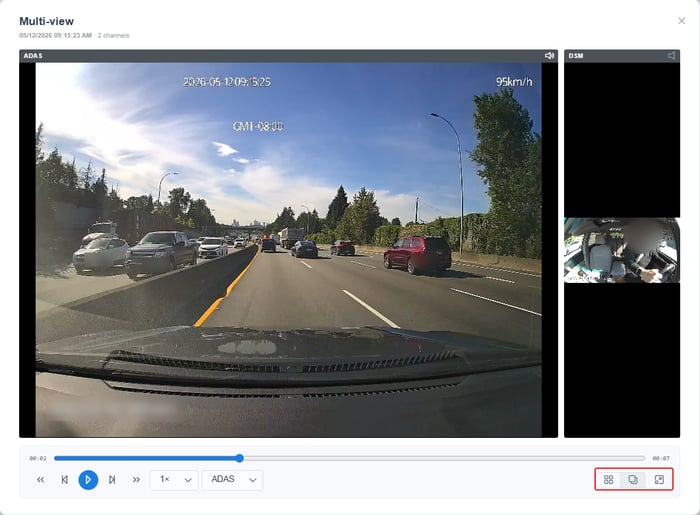
Changing the layout never reloads the video or changes your position, play state, speed or audio channel. Your layout choice is kept as you move between videos in the same session.
Download footage
Hover over a tile and click its download icon to save that channel. Each channel downloads as its own file; channels aren't merged into one video.
Good to know
- A channel with no footage keeps its place. Its tile shows an empty state and the other channels keep playing.
- Not every video has every channel. It depends on the camera installed and how the event is configured. Multi-view shows what was recorded.
- Multi-view is for recorded footage. Live video and snapshots use their own viewer.
Frequently asked questions
Why don't I see a Multi-view button?
Either the video has only one channel (you'll see Expand instead), or the video file hasn't arrived yet.
One of the tiles is empty. Is something broken?
Usually not. That channel has no footage for the time you're watching. If footage from that camera is always missing, contact PosiTrace Support.
Can I hear two channels at once?
No. You hear one channel at a time, and you can switch freely without losing your place.
Does this change how I request video?
No. Requesting, receiving and storing footage work the same way.
Can I use Multi-view for a live camera feed?
No. It's for recorded video only.
Do the channels really line up exactly?
Yes. They're held to the same moment for the whole clip.
Have feedback on Multi-view? Contact PosiTrace Support and tell us which layout you use most and what you use it for.