
You can edit many of your logged duty statuses, or add a status you forgot. Automatic drive time is the exception: you can't shorten or remove it. If it was logged by mistake, you can annotate it as System or User Error so it no longer counts against your clock.
Who can edit logs
| Who | Where | What happens |
|---|---|---|
| Drivers | Apollo ELD app > Logbook | Edit a status, or add one you forgot. |
| Dispatchers and fleet admins | Apollo ELD Portal > Log Books | Propose an edit or a new status. The driver gets it in the app as a Carrier Proposed Edit and can accept or reject it. |
Edit or add a status in the app
- In the Apollo ELD app, open Logbook from the menu and select the date.
- Tap Logs at the top.
- Tap the pencil icon next to the status you want to change.
You can also add a missing status from the Logbook.
Propose an edit from the Apollo ELD Portal
- In Locate, go to Operations > Apollo ELD Portal. See How do I access the Apollo ELD Portal?.
- In the portal sidebar, open Log Books.
- Propose the edit or the new status. This creates a Carrier Proposed Edit and sends it to the driver's app.
- The driver accepts or rejects it. The log only changes if the driver accepts.
What you can't edit
- A driver's first and last logs.
- The length of automatic drive time. It can't be shortened.
- The start time of automatically detected driving. It can't be moved.
Also, two logs next to each other can't have the same status, for example Off Duty followed by Off Duty.
My status showed “Driving” overnight or over the weekend. Can I change the drive time?
Not directly. If the drive time started with an automatic driving event, meaning the vehicle really did move at the start of that status, you can't reduce it later, even if it ran on too long.
Instead, annotate it as System or User Error and add a remark. Follow the steps below.
To catch this early, check your duty status at the end of each shift.
Annotate accidental drive time as System or User Error
You can do this in the Apollo ELD app on Android and iPhone. When you annotate a driving status as System or User Error:
- The time comes off your driving clock, so you get back the time logged by mistake.
- The driving status stays visible in your logs, as ELD regulations require.
- Your remark appears on the log event. You, your fleet admin and any law enforcement officer who reviews your record can see it.
- In the Apollo ELD app, open Logbook from the menu and select the date.
- Tap Logs at the top.
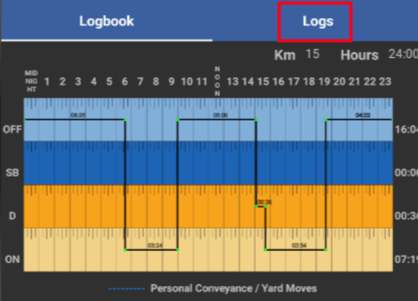
- Tap the pencil icon next to the Driving status you want to annotate.
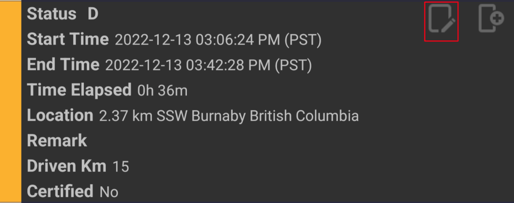
- On the edit screen, enter a Remark: a short reason for the change.
- Open the Reason list and select System or User Error.
- Tap Confirm Changes.
You return to the list of log events. A red X icon on the Driving status shows that it's annotated and no longer counts against your clock.
If System or User Error isn't in the Reason list, update the app. See How do I download, log in to and update the Apollo ELD app?.